How to Set Up a Size Chart in Lavar
Size charts help customers choose the right fit and reduce returns. Follow the steps below to create and display a size chart using Lavar.
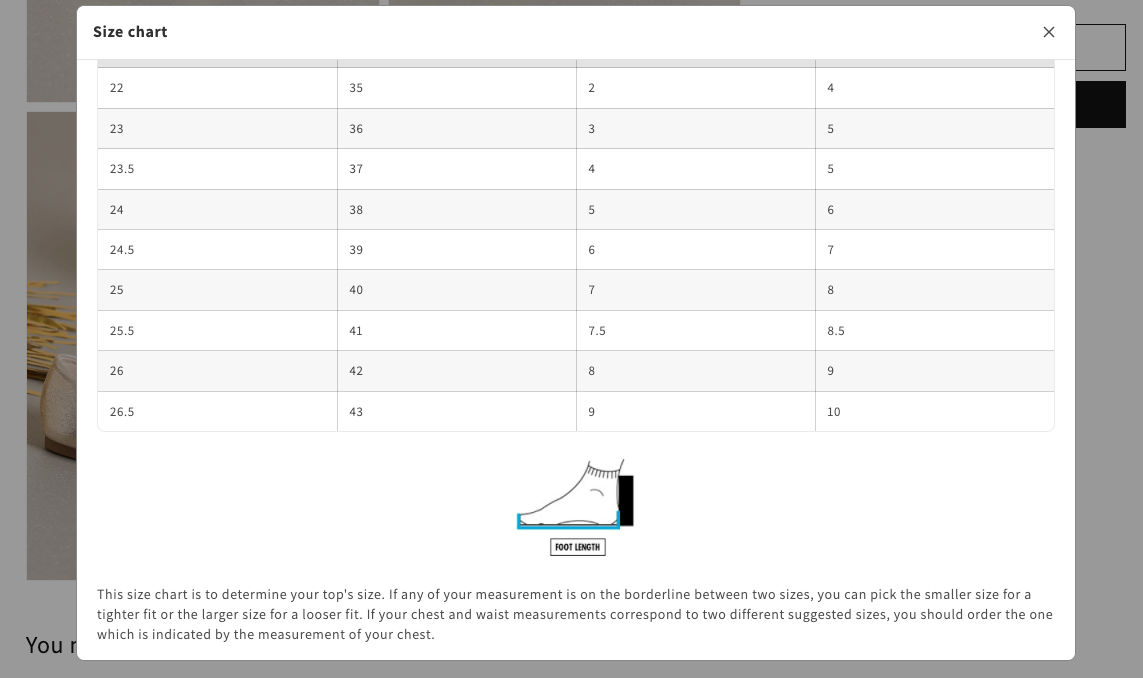
Step 1: Enable Lavar in Your Theme
Make sure the Lavar app embed is enabled in your Theme Editor before creating a size chart.
Step 2: Create a Size Chart
- Open Lavar in your Shopify Admin.
- Navigate to Store Optimizations → Size Chart.
- Click Add Size Chart.
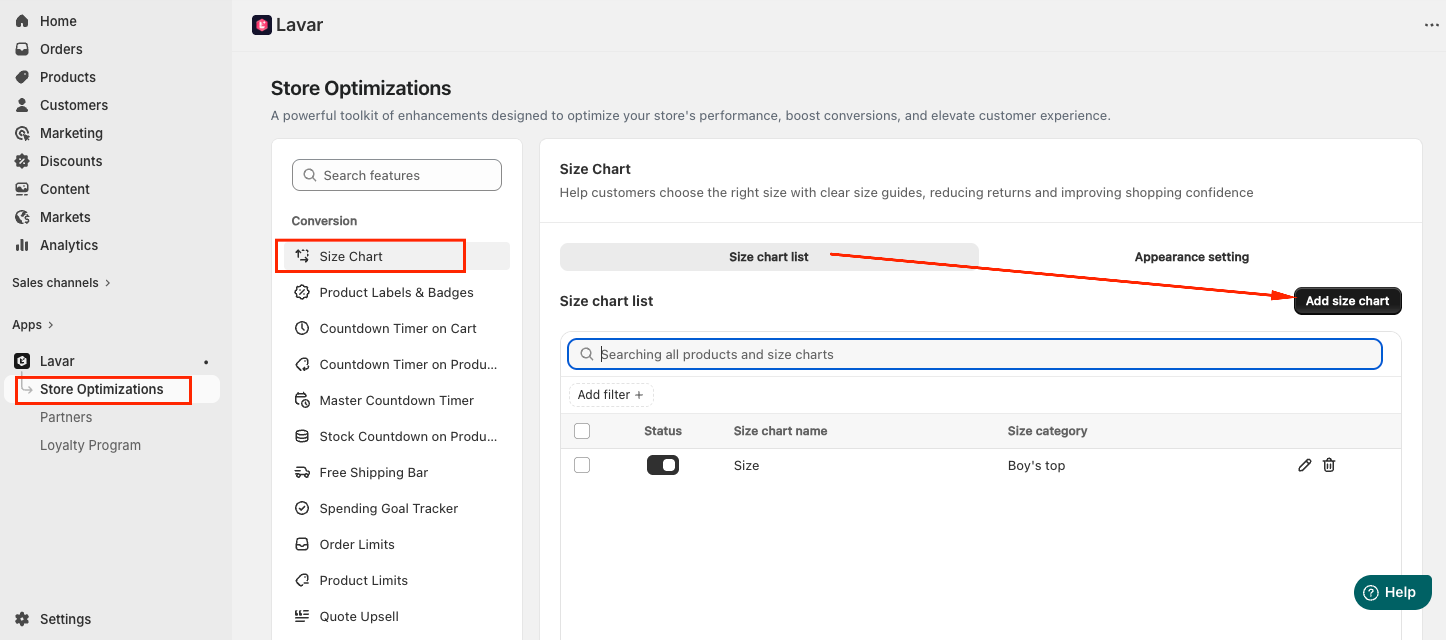
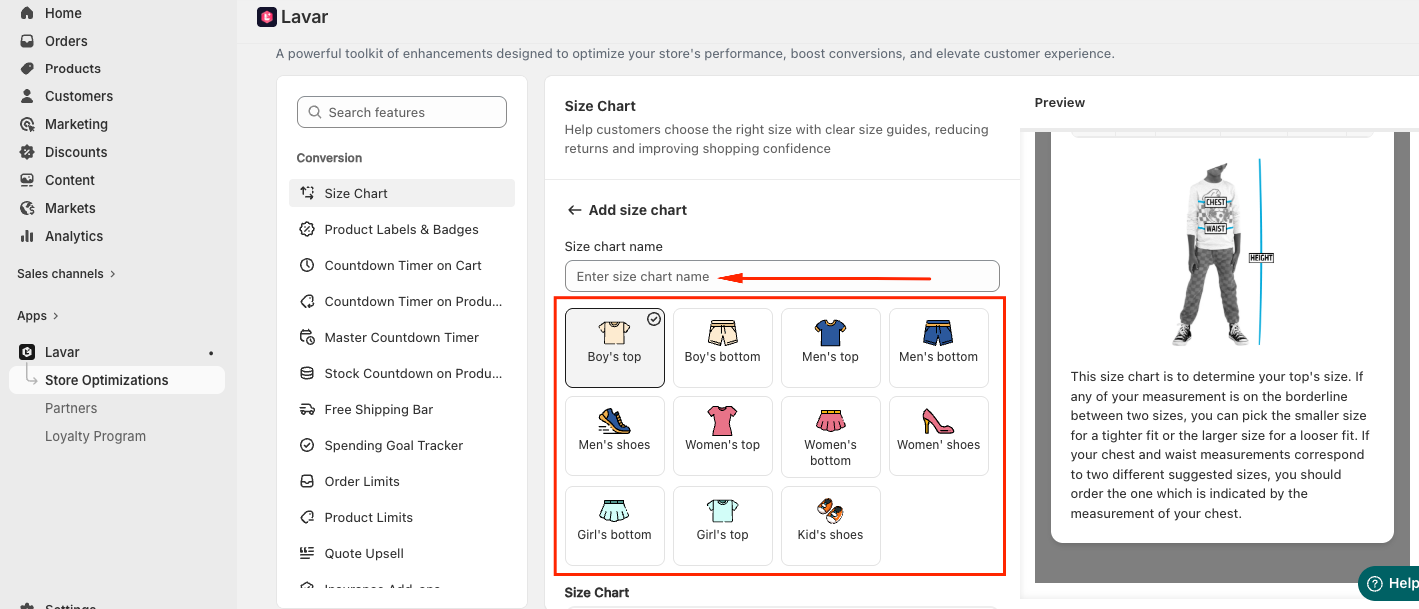
Then configure your chart:
- Enter a name (example: Men’s Top Size Chart)
- Choose a suitable template for your product category
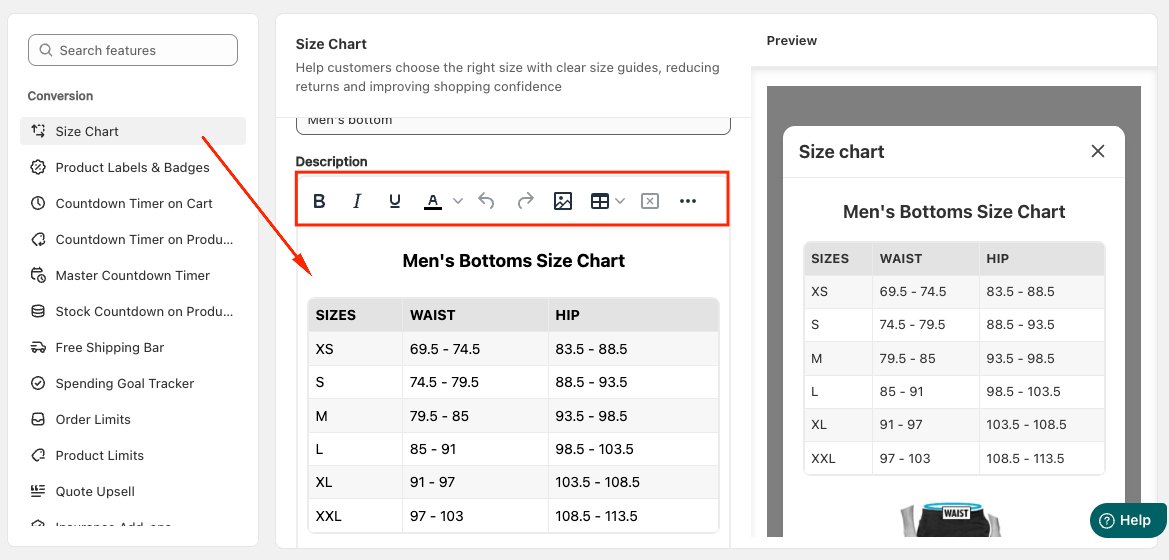
- Create or edit the size table description manually:
- Edit cells directly
- Add or remove rows and columns
- Insert images or links
- Adjust fonts and colors
Assign Products:
Select the products where the size chart will appear.
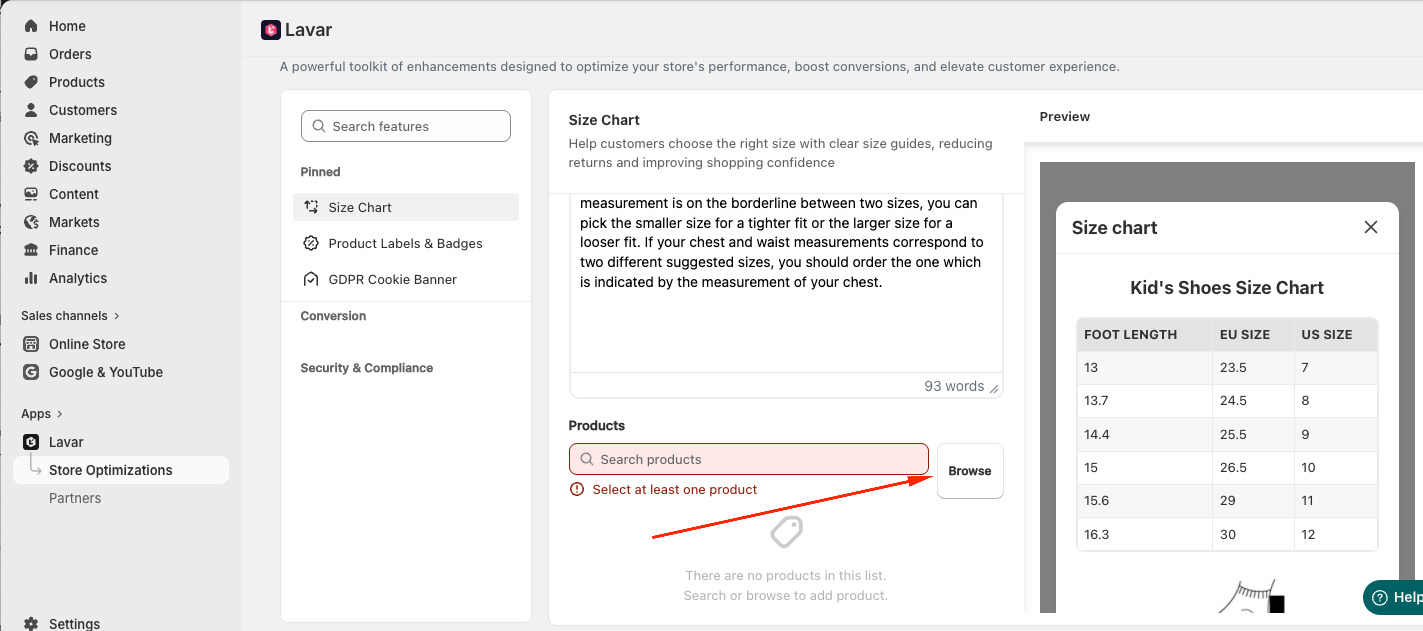
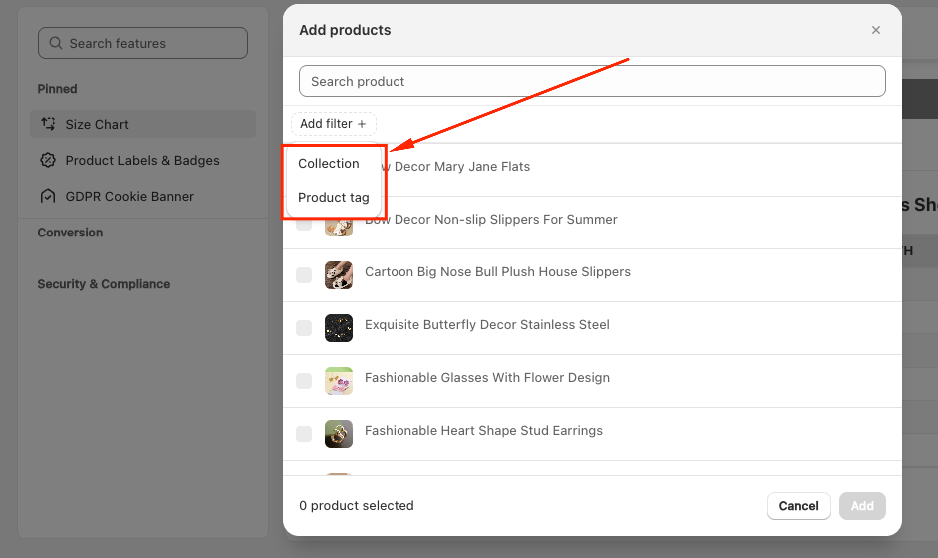
You can filter products by Collection or Product tag:
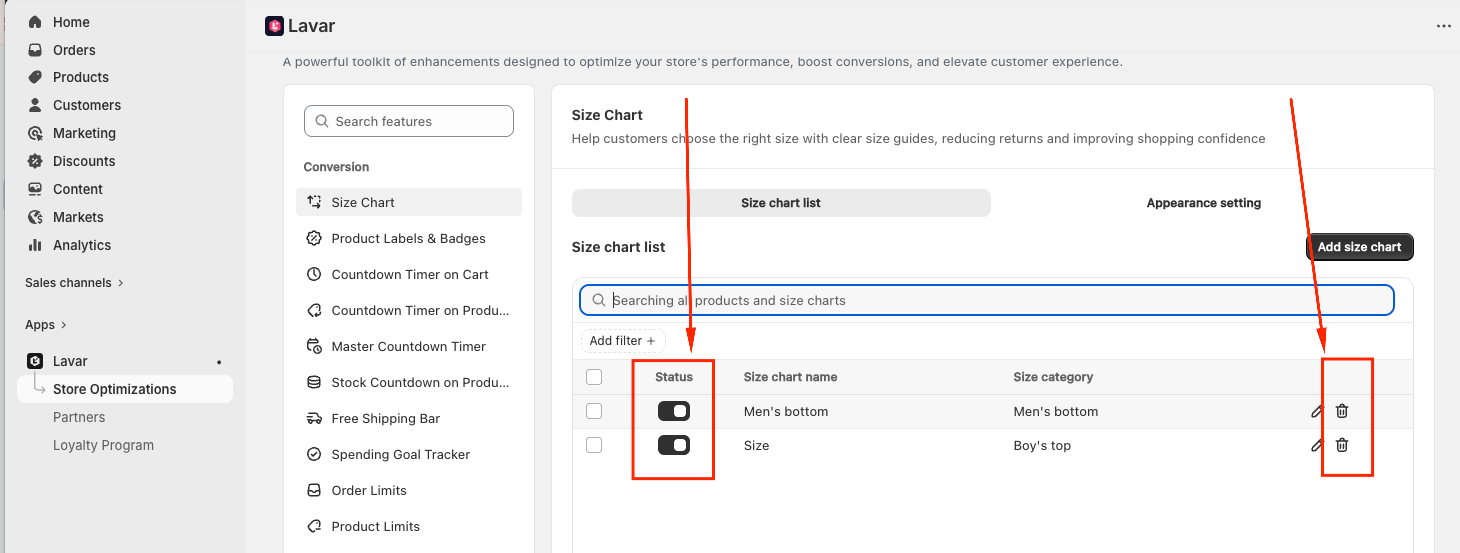
After creating the size chart, you can Activate or Delete it anytime.
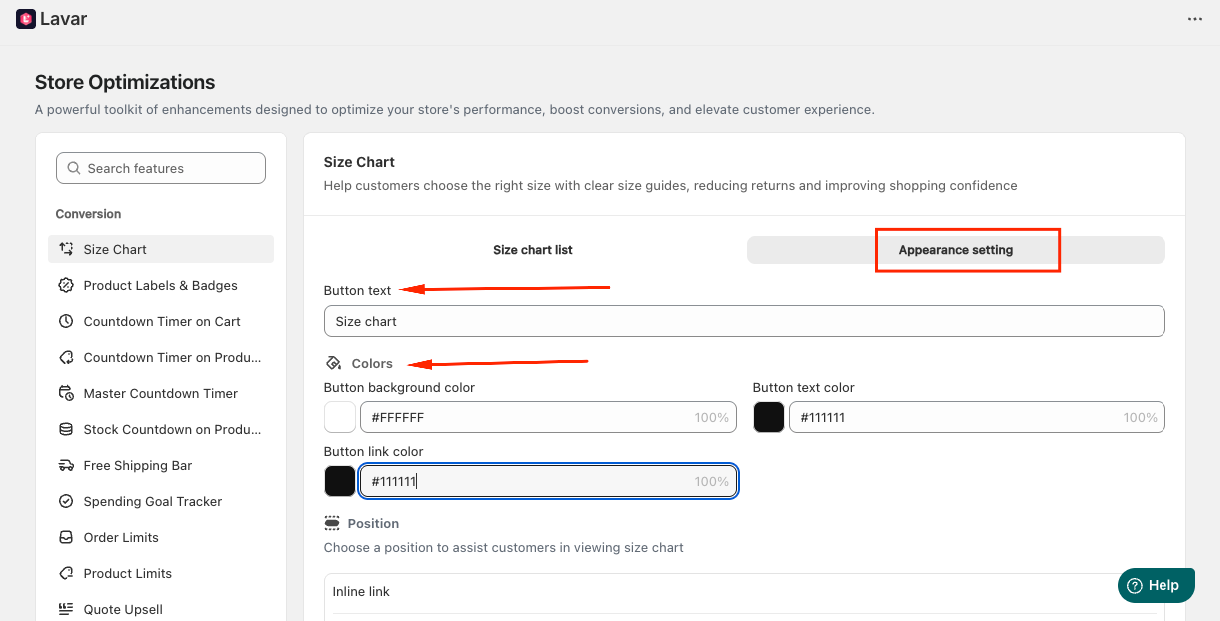
Step 3: Customize Size Chart Appearance
In the Appearance Settings section, you can change the button text and apply the color for the Size Chart.
Step 4: Choose Display Position on Storefront
You can select how the size chart appears:
Inline Link: Requires adding the Lavar app block in the Theme Editor.
- Click Add widget to open the Theme Editor.
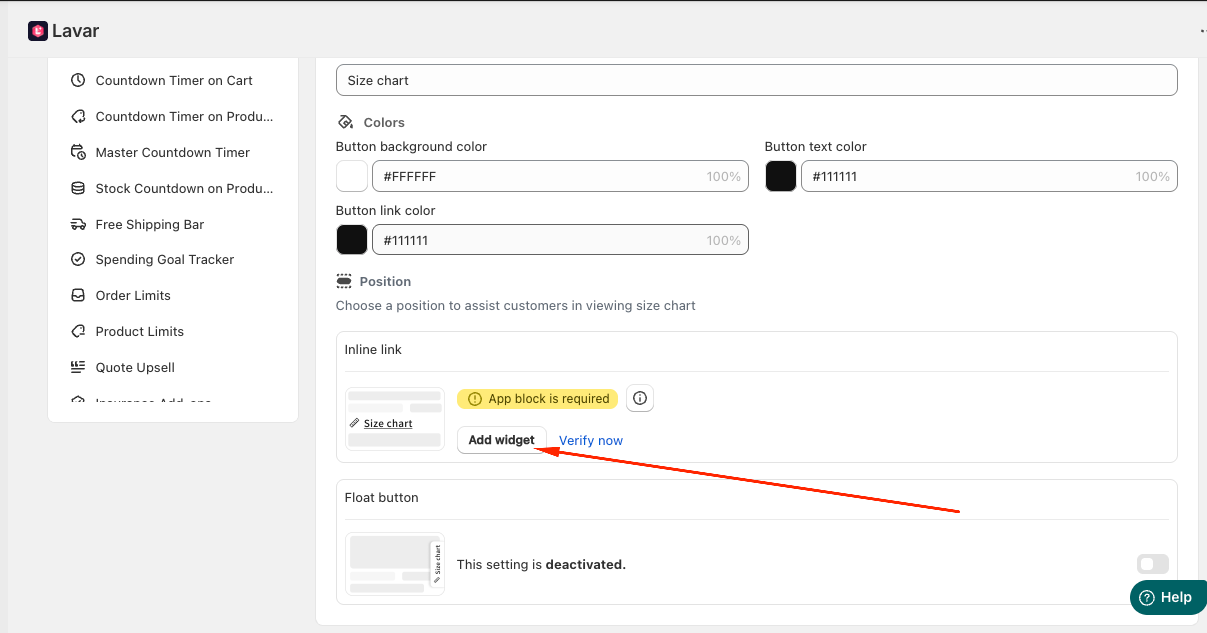
- You will be directed to the Theme Editor page. Then you can move the Size chart to the position you want and click Save:
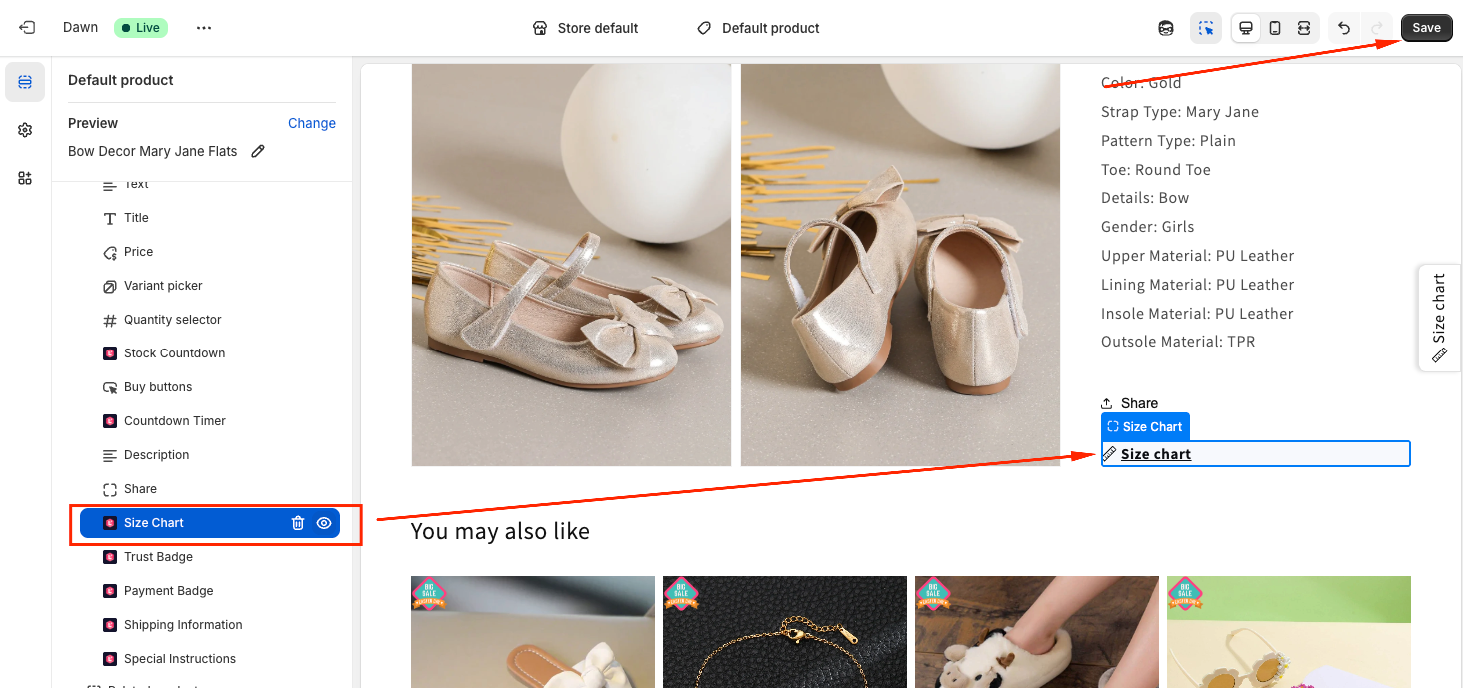
- After setup, return to the app and click Verify Now to confirm the app block was added correctly.
Floating Button: Displays a floating size chart button automatically on product pages.
If you need further assistance, please feel free to contact us at [email protected].