How to Set Up Agree Terms & Conditions Checkbox in Lavar
The Agree Terms & Conditions Checkbox ensures customers acknowledge your store’s policies before proceeding to checkout.
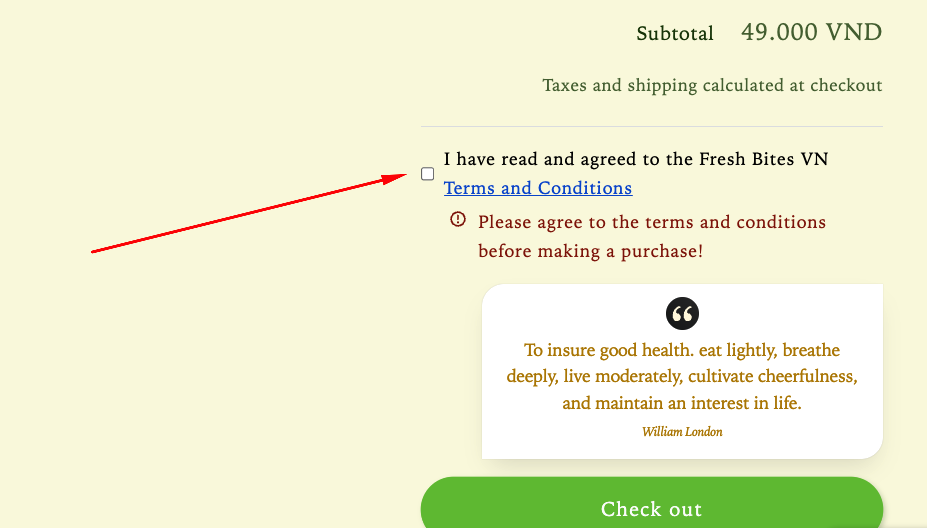
Step 1: Enable Lavar in Your Theme
Make ure the Lavar app embed is enabled in your Theme Editor first.
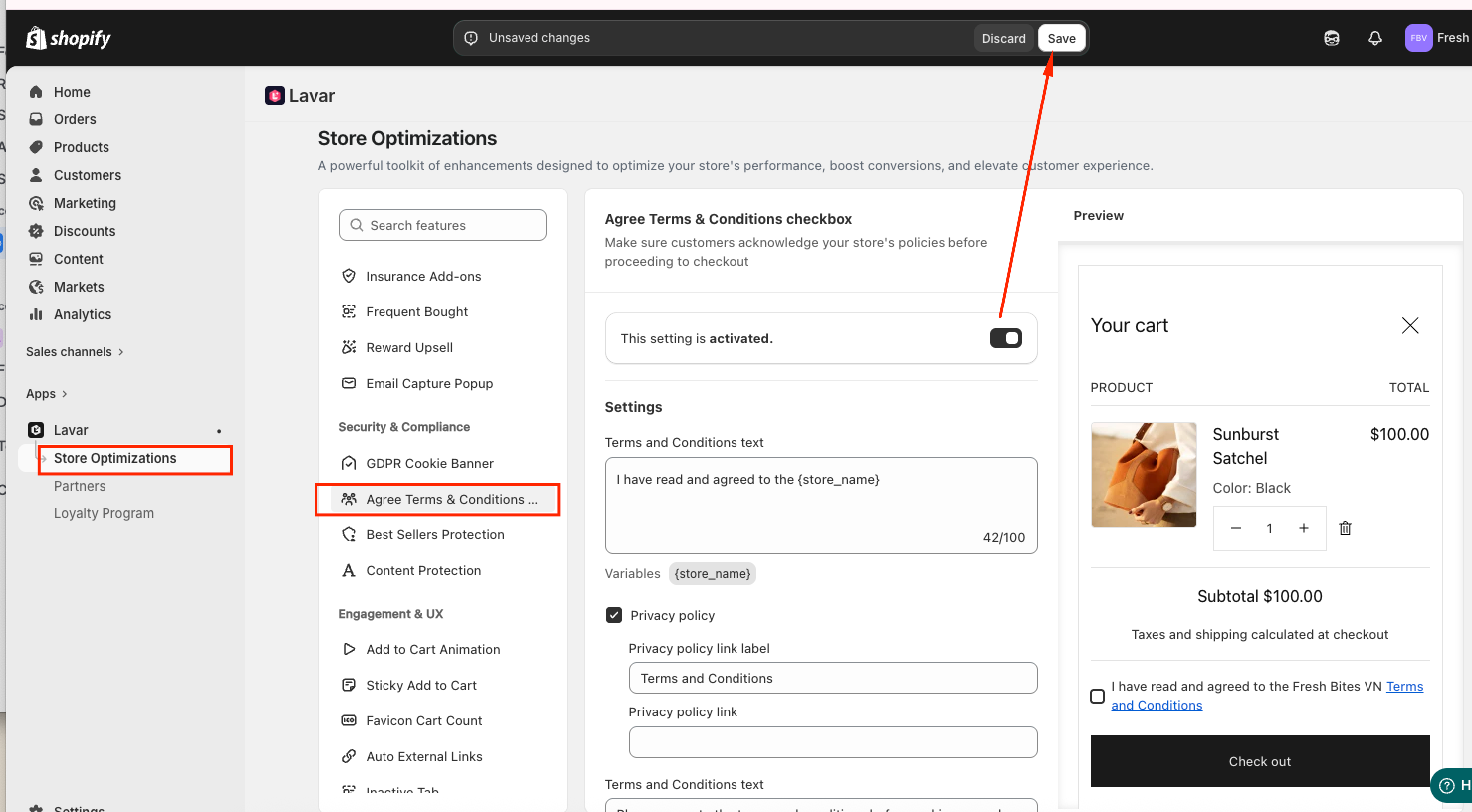
Step 2: Activate the feature Agree Terms & Conditions Checkbox
- Open Lavar in your Shopify Admin
- Navigate to Store Optimizations → Agree Terms & Conditions Checkbox
- Click Activate feature and Save
Step 3: Configure the Agree Terms & Conditions Checkbox Settings
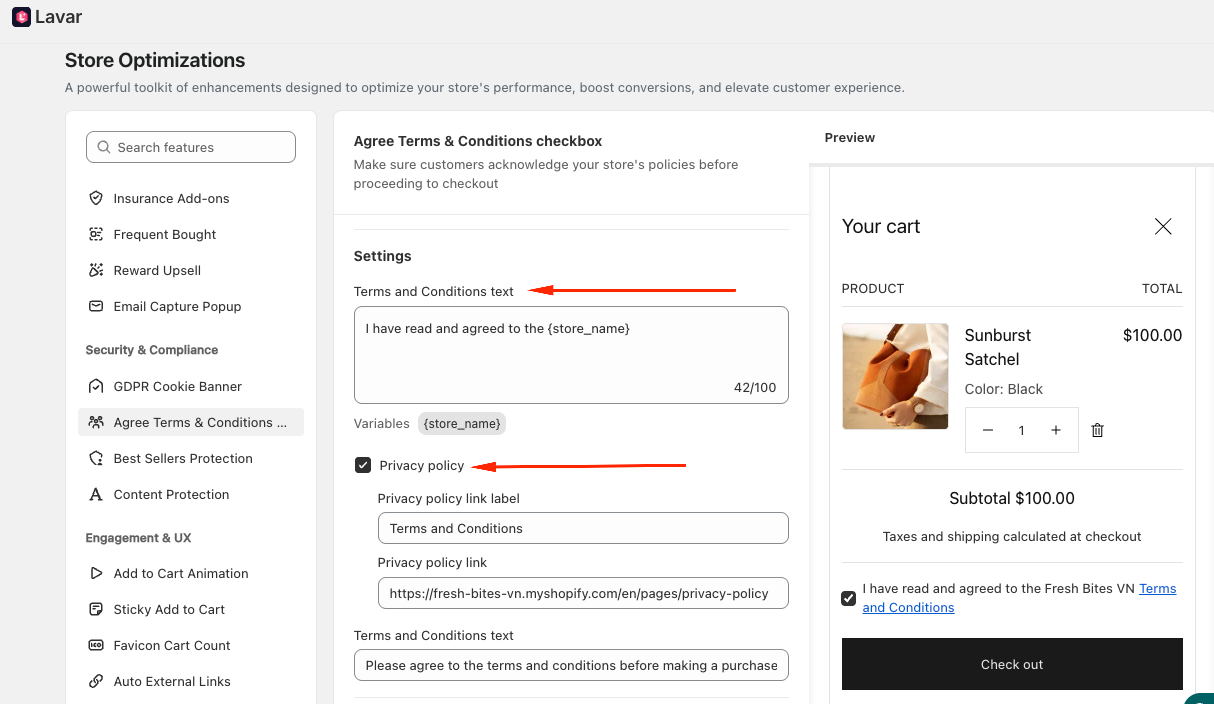
In the General Settings section, configure these information:
- Terms and Conditions text - Customize the message displayed next to the checkbox.
- Privacy Policy
- Insert the Privacy Policy link label
- Add the URL to your Privacy Policy page
Make sure your policy links are correct and publicly accessible.
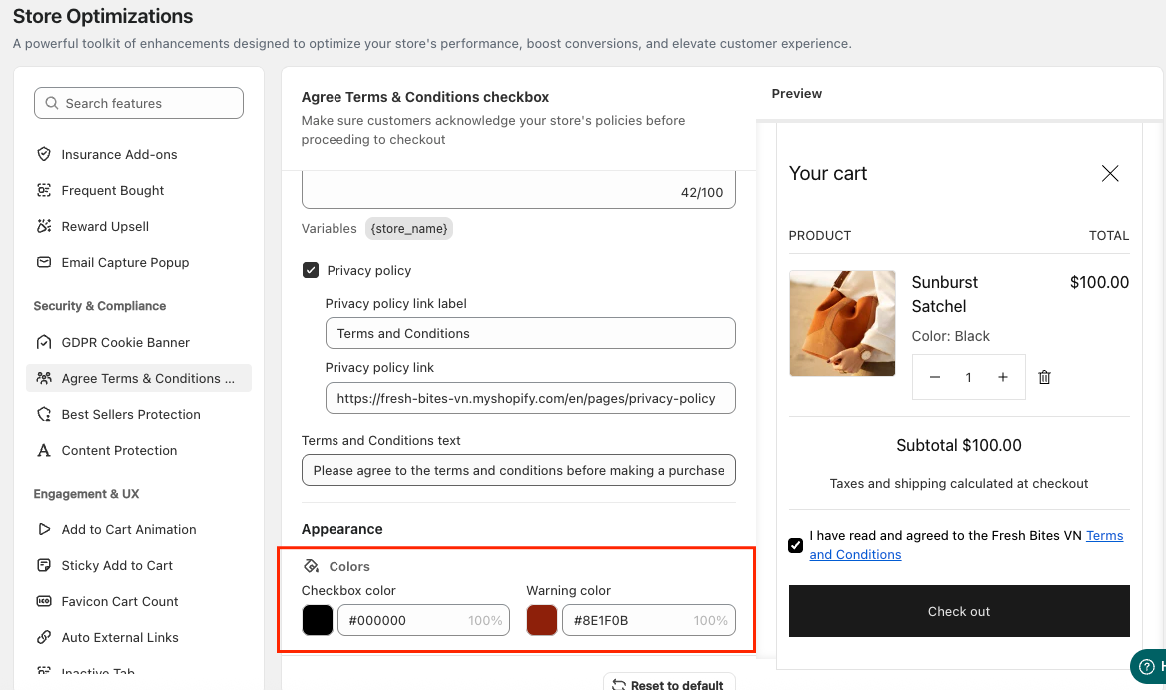
Step 4: Customize the Agree Terms & Conditions Checkbox Appearance
In the Appearance Settings section, you can apply colors to match your store design.
If you need further assistance, please feel free to contact us at [email protected].