How to Set Up Content Protection in Lavar
The Content Protection feature helps prevent unauthorized copying or misuse of your store content by disabling actions such as text selection, right-click, drag-and-drop, and common keyboard shortcuts.
This feature is useful for protecting product descriptions, images, and other proprietary content from being easily copied.
Step 1: Enable Lavar in Your Theme
Make sure the Lavar app embed is enabled in your Theme Editor first.
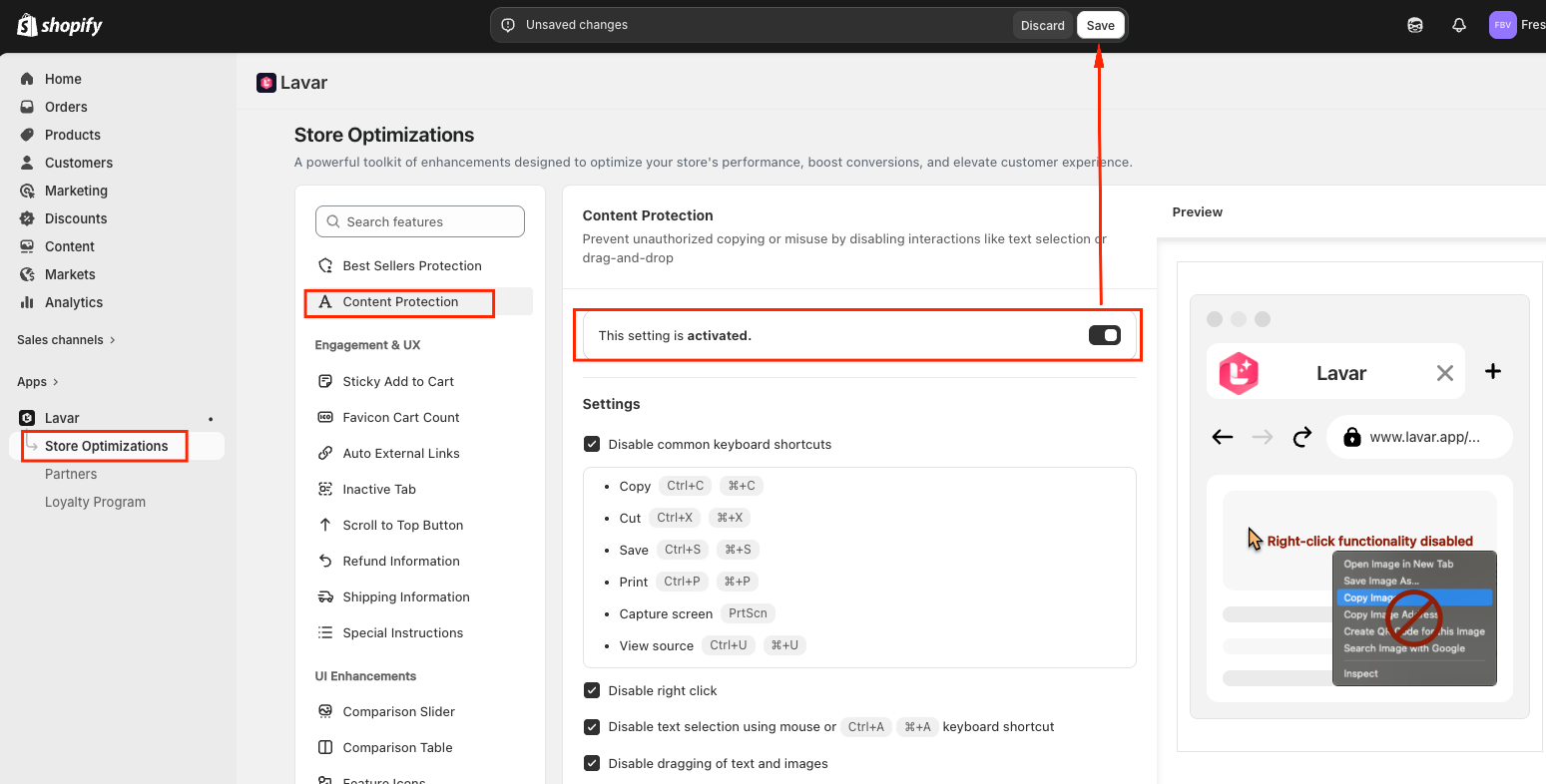
Step 2: Activate the feature Content Protection
- Open Lavar in your Shopify Admin
- Navigate to Store Optimizations → Content Protection
- Click Activate feature and Save
Step 3: Configure the Content Protection Settings
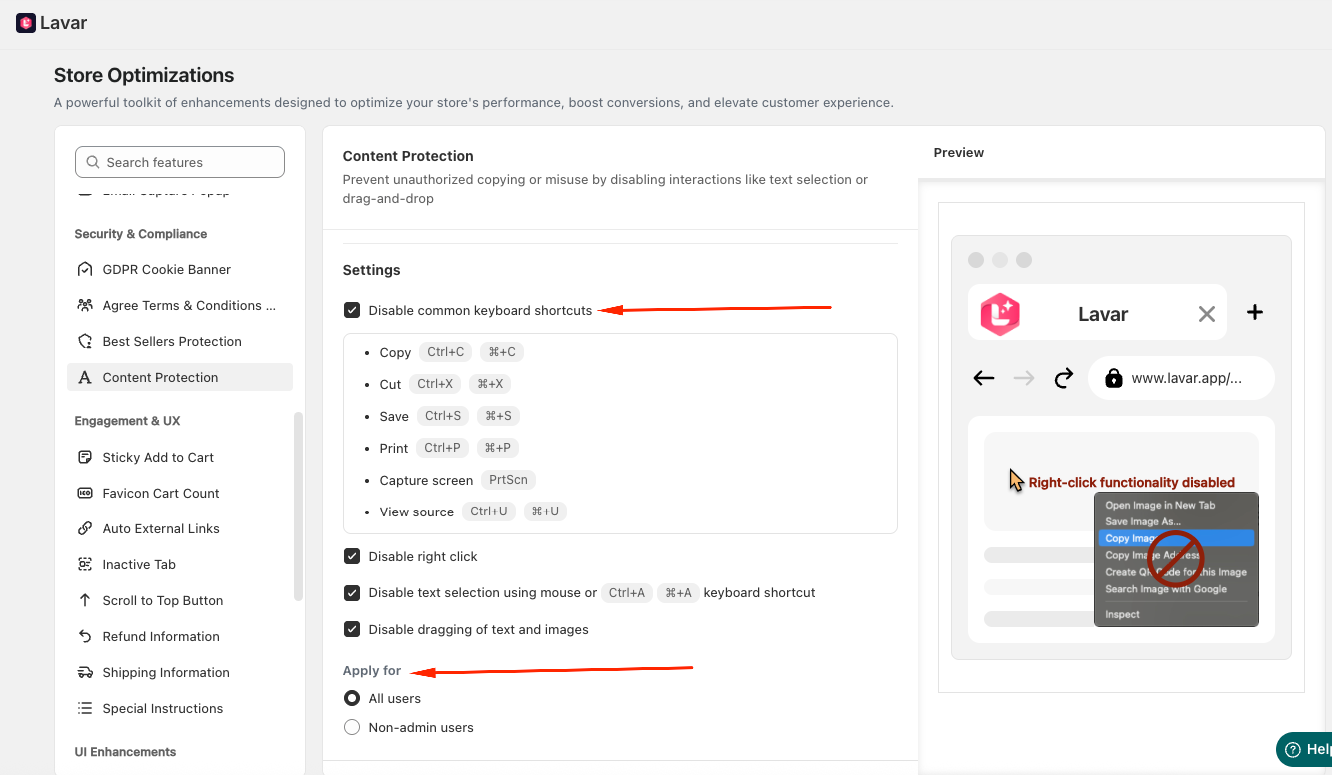
In the Settings section, you can choose which actions to disable:
- Disable Common Keyboard Shortcuts: You can block the following shortcuts:
- Copy - Ctrl + C / ⌘ + C
- Cut - Ctrl + X / ⌘ + X
- Save Page - Ctrl + S / ⌘ + S
- Print - Ctrl + P / ⌘ + P
- Screen Capture - PrtScn
- View Source - Ctrl + U / ⌘ + U
- Disable Mouse & Interaction Actions
- Disable right-click
- Disable text selection (including Ctrl + A / ⌘ + A)
- Disable dragging of text and images
Besides, you can apply the Content Protection for All users or Non-admin users only.
If you need further assistance, please feel free to contact us at [email protected].