How to Set Up Countdown Timer on Cart
Adding a countdown timer to the cart helps motivate customers to complete their purchase by displaying a limited time to check out. By creating a sense of urgency, it can help reduce hesitation and improve conversion.
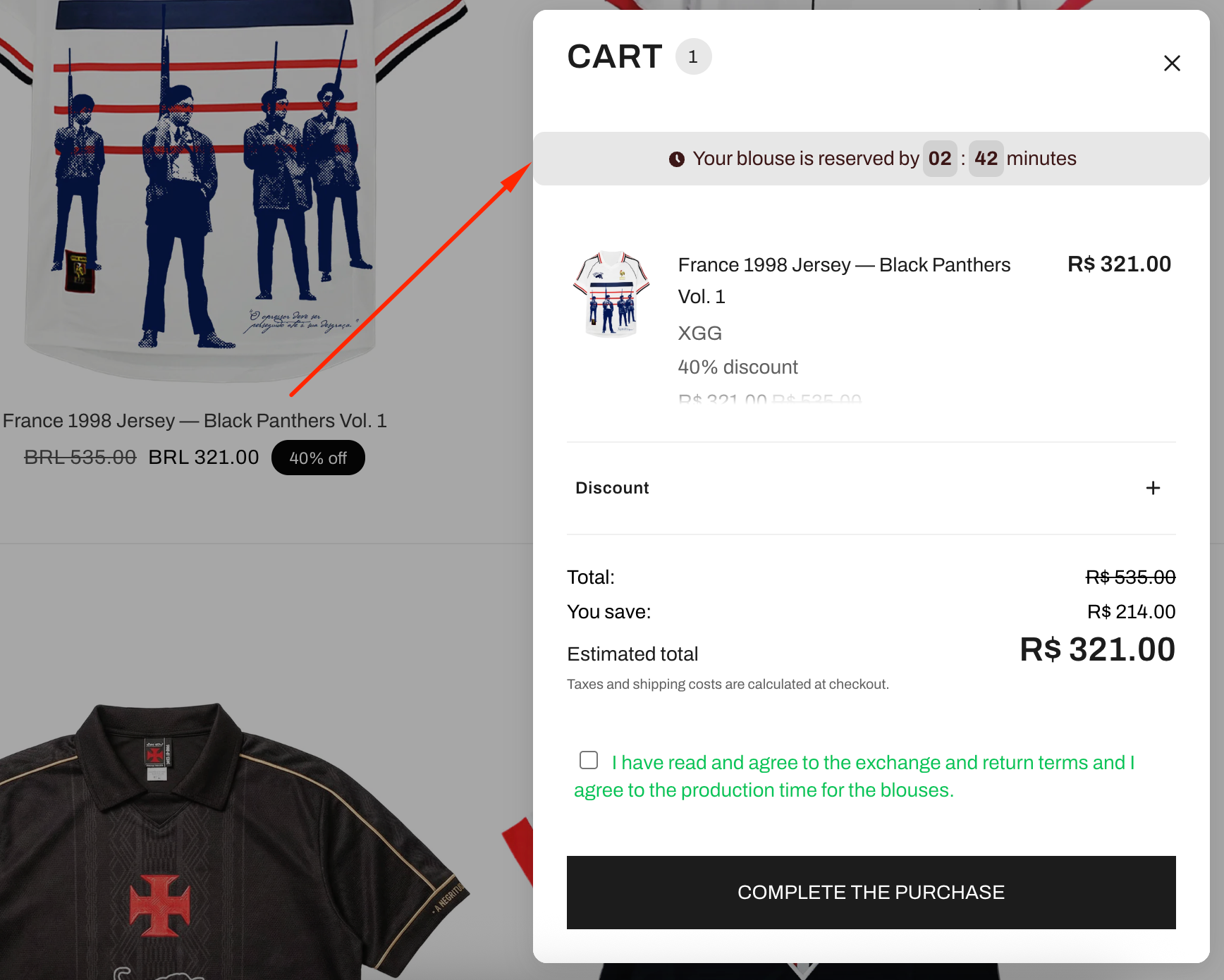
Step 1: Enable Lavar in Your Theme
Make sure the Lavar app embed is enabled in your Theme Editor first.
Step 2: Activate Countdown Timer on Cart
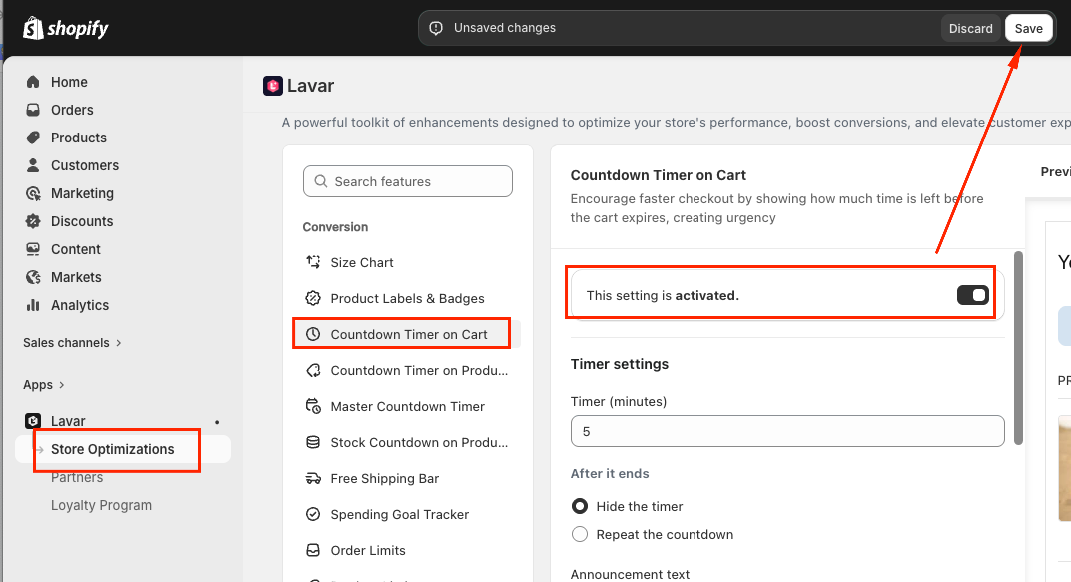
- Open Lavar in your Shopify Admin.
- Navigate to Store Optimizations → Countdown Timer on Cart
- Click Activate and Save.
Then configure the Timer Settings:
- Enter the Timer duration (in minutes).
- Choose what happens after the countdown ends: Hide the timer or Repeat the Countdown
- Enter the Announcement Text displayed with the timer.
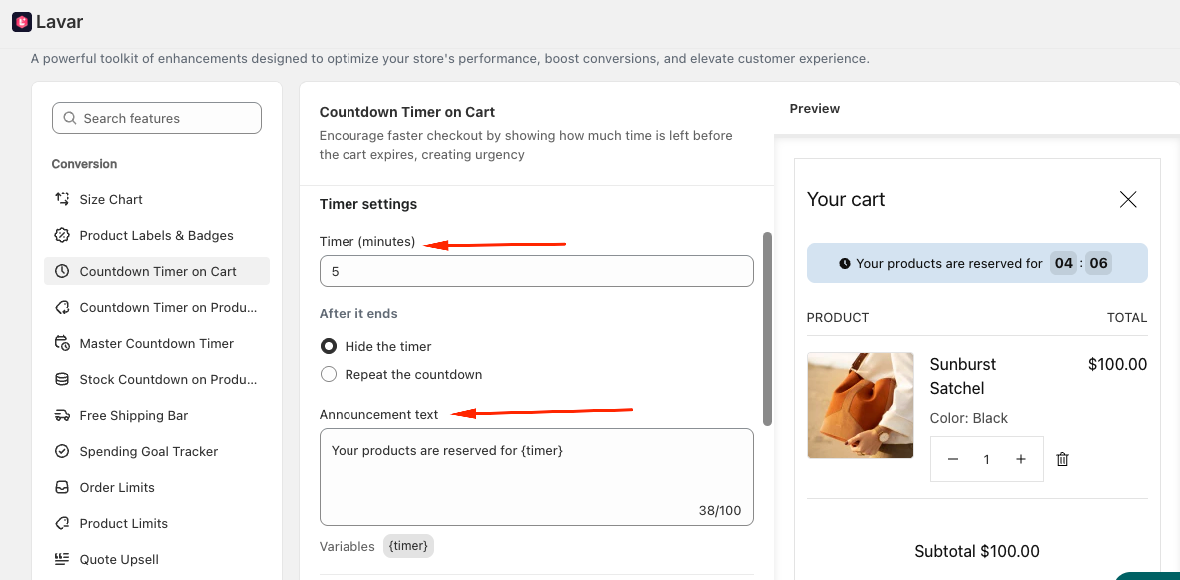
Note: The countdown timer is triggered automatically when customers add any product to the cart. This feature applies to all products and cannot be limited to specific items.
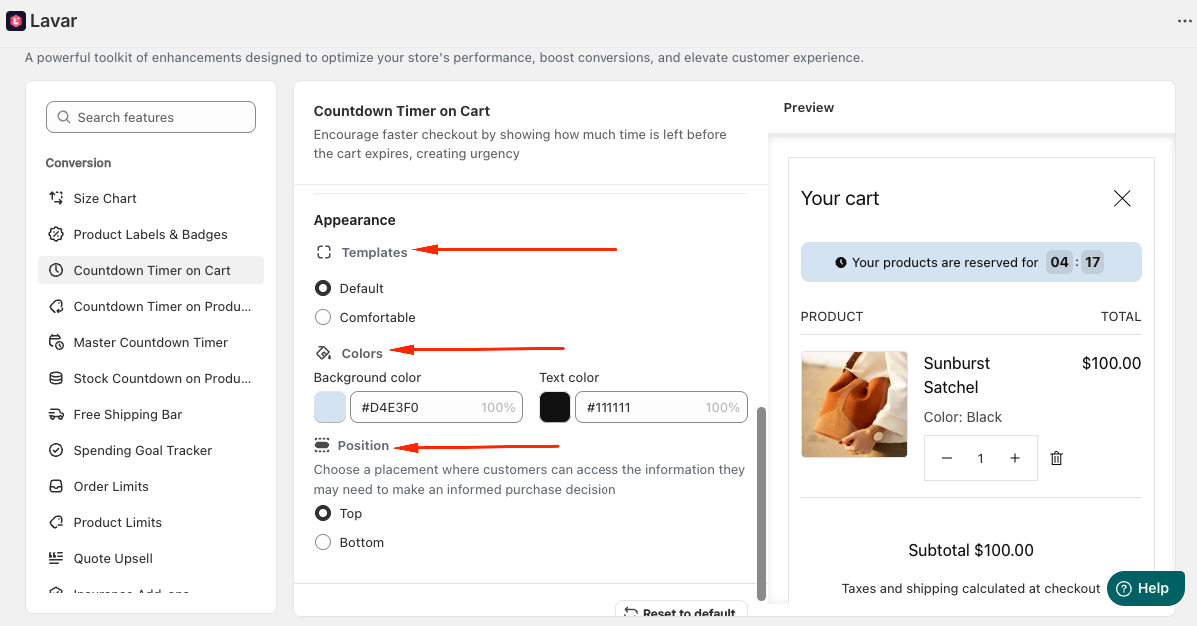
Step 3: Customize Countdown Timer Appearance
In the Appearance section, you can:
- Select a template
- Apply colors
- Choose the display position of the countdown timer
After completing the setup, please check your storefront to make sure the timer displays correctly.
If you need further assistance, please feel free to contact us at [email protected].