How to Set Up Email Capture Popup in Lavar
The Email Capture Popup helps you convert visitors into subscribers by displaying a quick signup prompt with an attractive offer, such as a discount code.
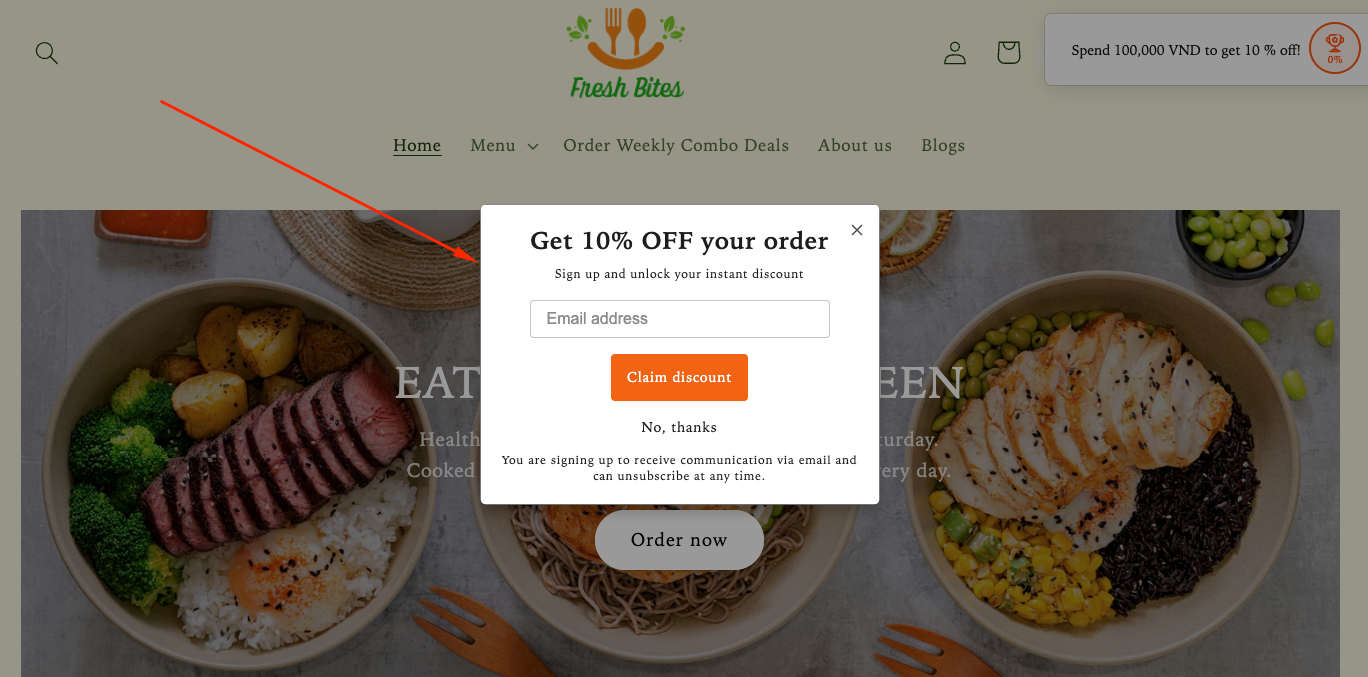
Step 1: Enable Lavar in Your Theme
Make sure the Lavar app embed is enabled in your Theme Editor first.
Step 2: Activate the feature Email Capture Popup
- Open Lavar in your Shopify Admin
- Navigate to Store Optimizations → Email Capture Popup
- Click Activate feature and Save
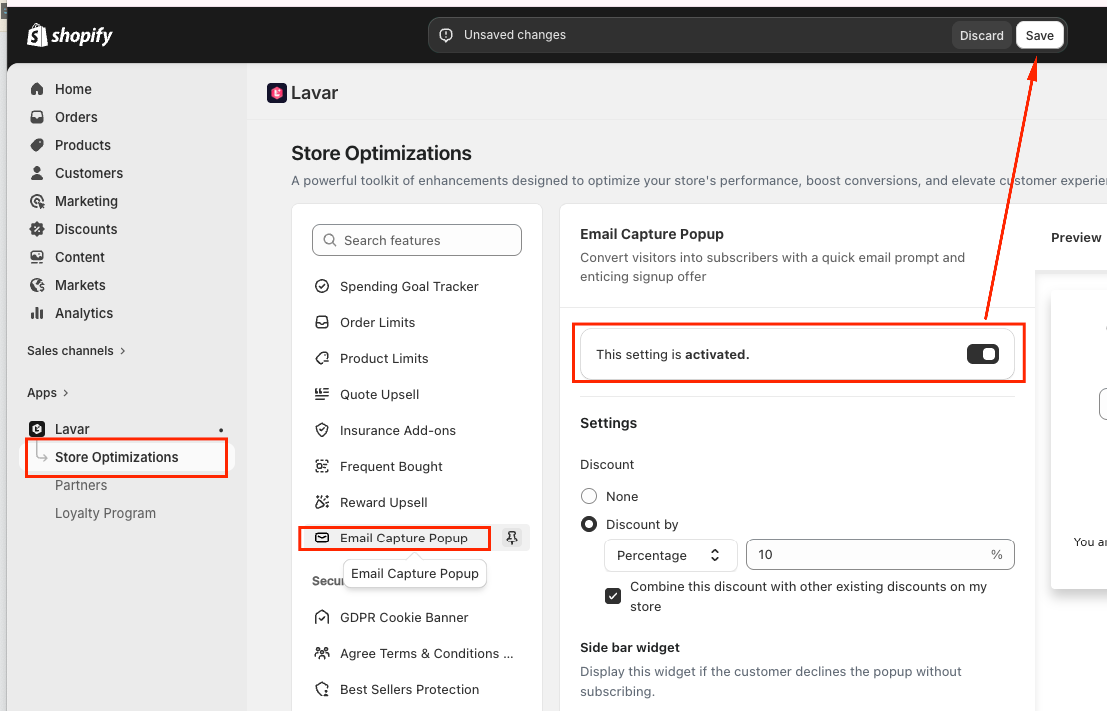
Step 3: Configure the Email Capture Popup Settings
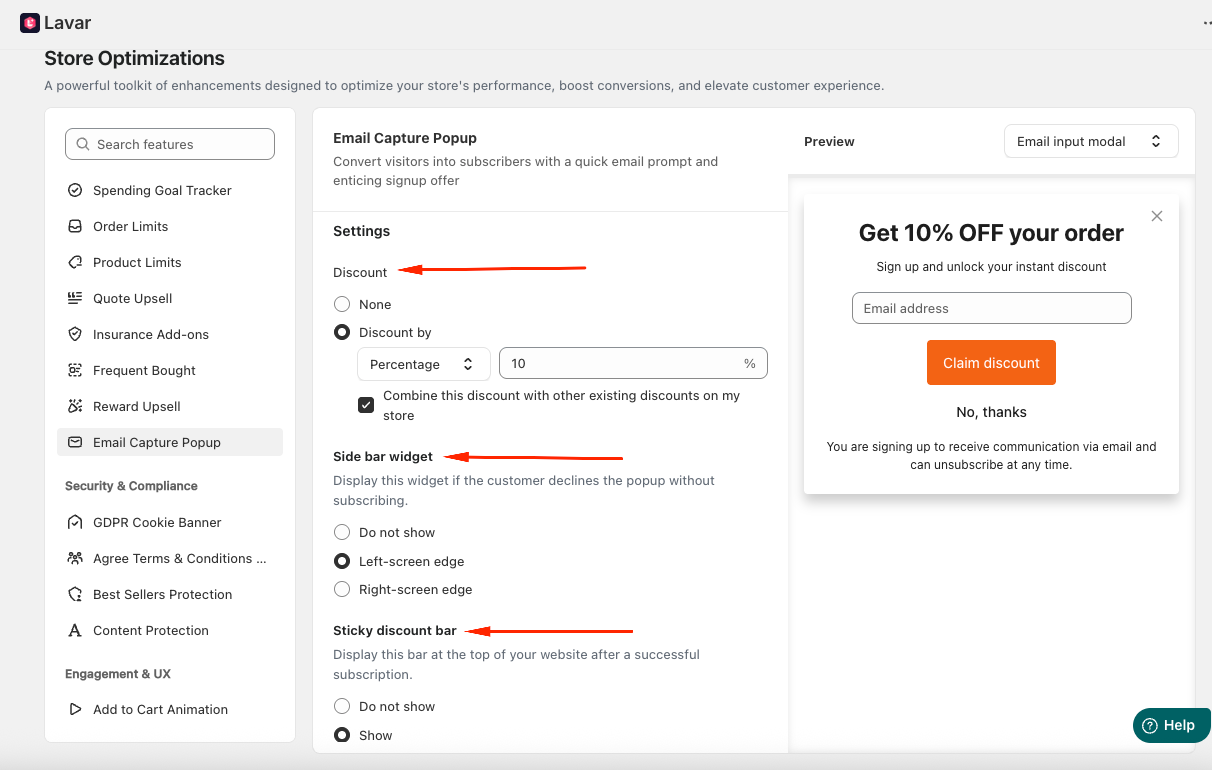
In the Settings section, configure the behavior and offer:
(1) Discount Settings: You can choose:
- None - Collect emails without offering a discount
- Discount by Percentage or Fixed Amount
And enable: Combine this discount with other existing discounts on my store (Optional)
(2) Side Bar Widget: If customers close the popup without subscribing, you can show a reminder widget. Options:
- Do not show
- Show on the left-screen / right-screen edge
(3) Sticky Discount Bar: After a successful subscription, you can display a sticky discount bar at the top of your website.
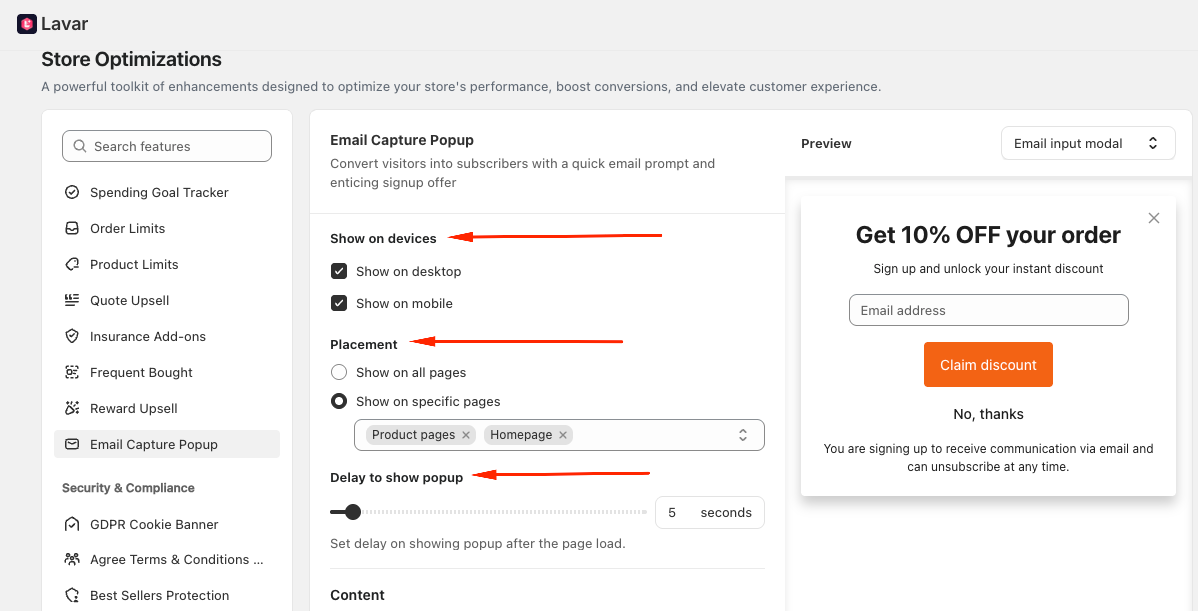
(4) Show on Devices: tick on the device you want the popup appears: Desktop and Mobile
(5) Placement: Choose where to display the popup:
- Show on all pages
- Show on specific pages: Product pages, Homepage, Collection page, Collection list, Cart page
(6) Delay to Show Popup: Set the delay time before the popup appears after page load (e.g., 5 seconds).
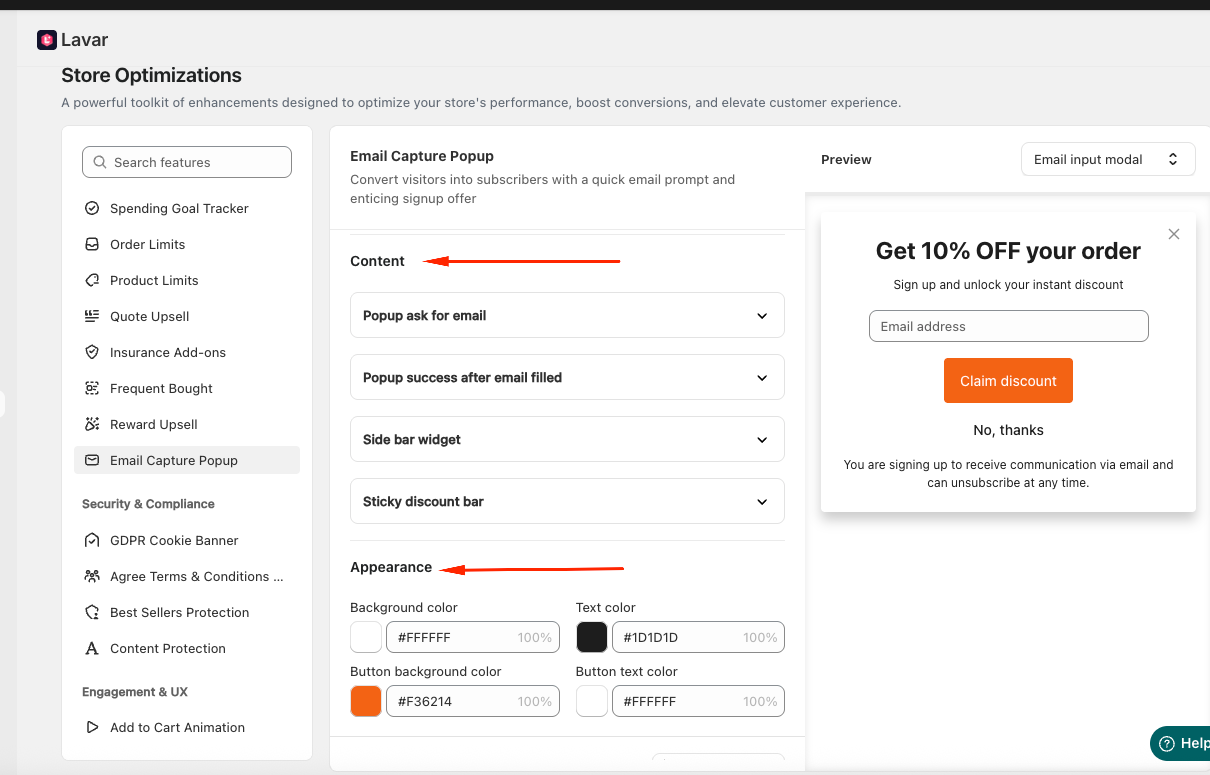
Step 4: Customize the Email Capture Popup Appearance
In the Content section, you can customize the text for:
- Popup email request message
- Success message after email submission
- Side bar widget content
- Sticky discount bar content
In the Appearance Settings section, you can apply custom colors to match your store branding.
If you need further assistance, please feel free to contact us at [email protected].