How to Set Up Free Shipping Bar in Lavar
The Free Shipping Bar helps increase cart value by showing customers how close they are to unlocking free shipping. As shoppers add more items to their cart, the progress message updates automatically to encourage larger purchases.
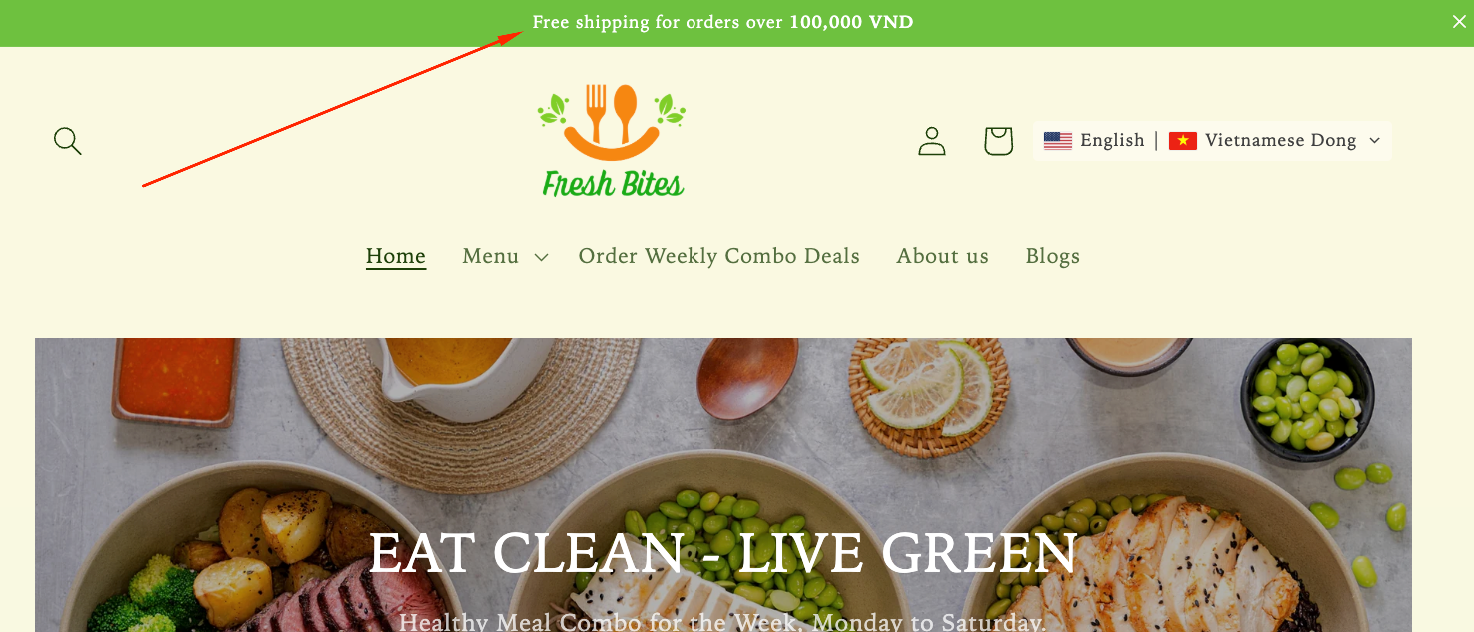
Step 1: Enable Lavar in Your Theme
Make sure the Lavar app embed is enabled in your Theme Editor first.
Step 2: Activate the Free Shipping Bar feature
- Open Lavar in your Shopify Admin
- Navigate to Store Optimizations → Free Shipping Bar
- Click Activate feature and Save
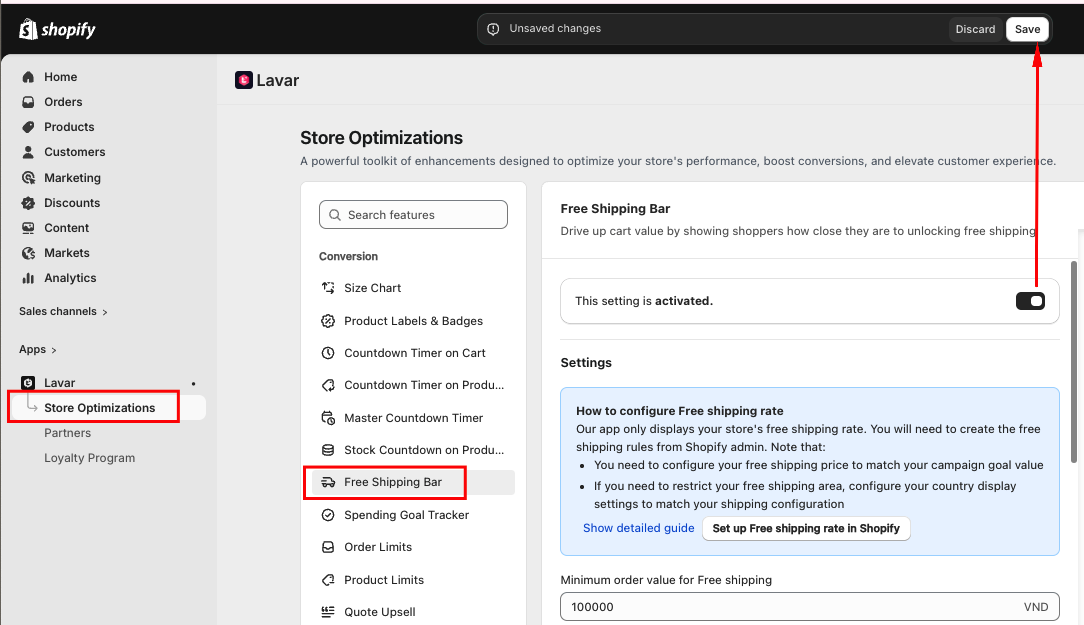
Step 3: Configure the Free shipping rate
Lavar only displays your store’s existing free shipping rate. So you must first create a free shipping rule in Shopify Admin.
To set up free shipping:
- From your Shopify admin, go to Settings > Shipping and Delivery > Enter the Profile name
- Click 'Create new profile' at Custom shipping rates section
- Click 'Add rate' and enter the name for the rate
- Make sure that the value of the Price field is 0
- Set up conditions based on your business needs
- Click Done, and then click Save
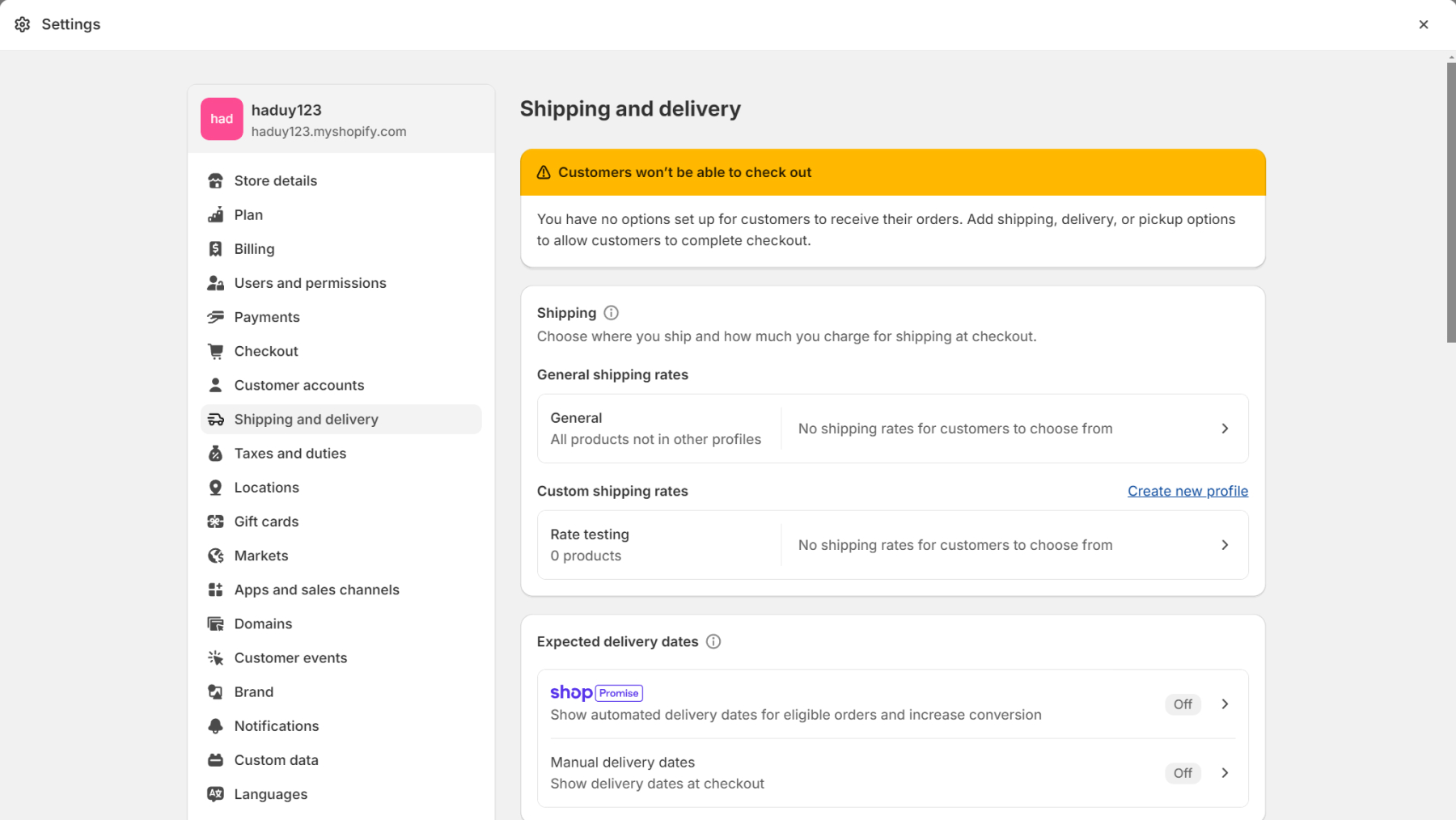
Note that:
- You need to configure your free shipping price to match your campaign goal value
- If you need to restrict your free shipping area, configure your country display settings to match your shipping configuration
Step 4: Customize the Free Shipping Bar Appearance
Enter the content displayed in different cart stages:
- Minimum order value for free shipping
- Initial text — shown when the cart is empty
- In-progress text — shown when the cart value has not yet reached the goal
- Goal reached text — shown when the cart value meets or exceeds the free shipping threshold
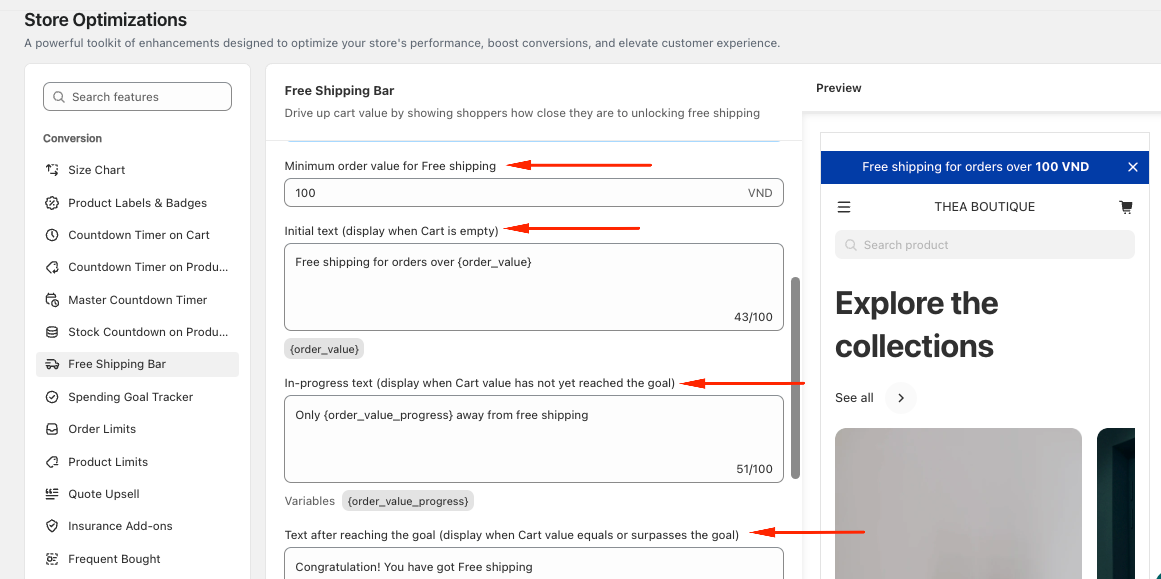
In the Appearance section, you can Apply colors to match your store design.
If you need further assistance, please feel free to contact us at [email protected].