How to Set Up GDPR Cookie Banner in Lavar
The GDPR Cookie Banner helps you inform visitors that your store uses cookies to enhance their browsing experience and comply with privacy regulations such as GDPR, CCPA, LGPD, and more.
This feature allows customers to control their cookie preferences while helping your store stay compliant with international privacy laws.
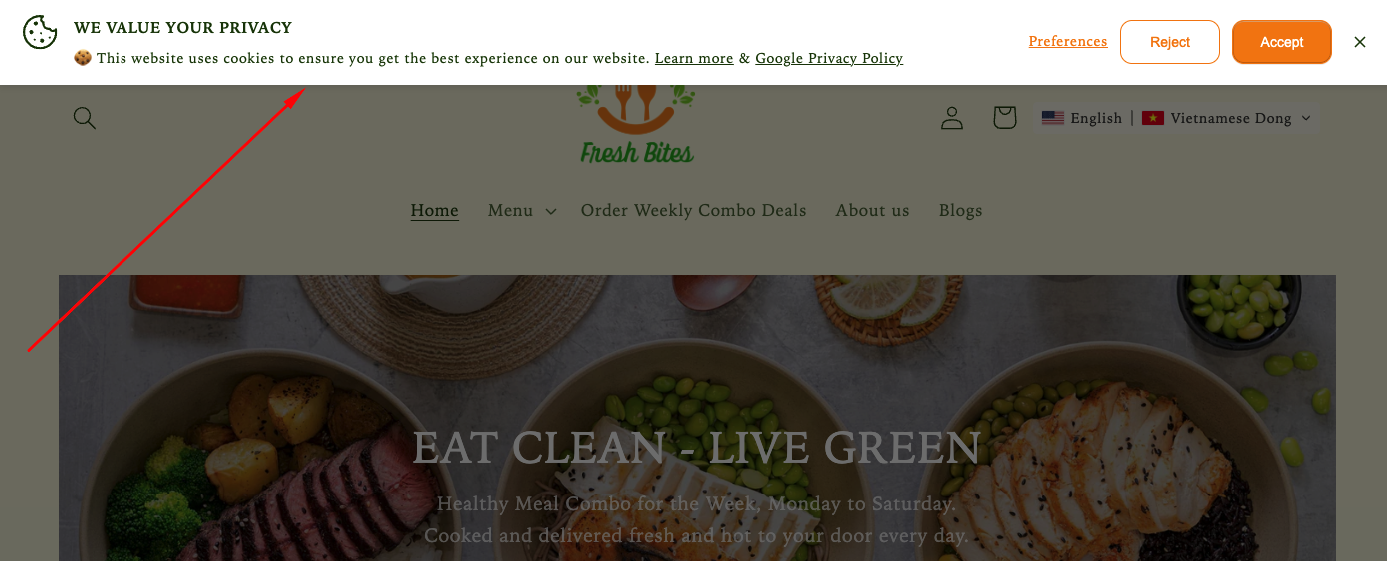
Step 1: Enable Lavar in Your Theme
Make sure the Lavar app embed is enabled in your Theme Editor first.
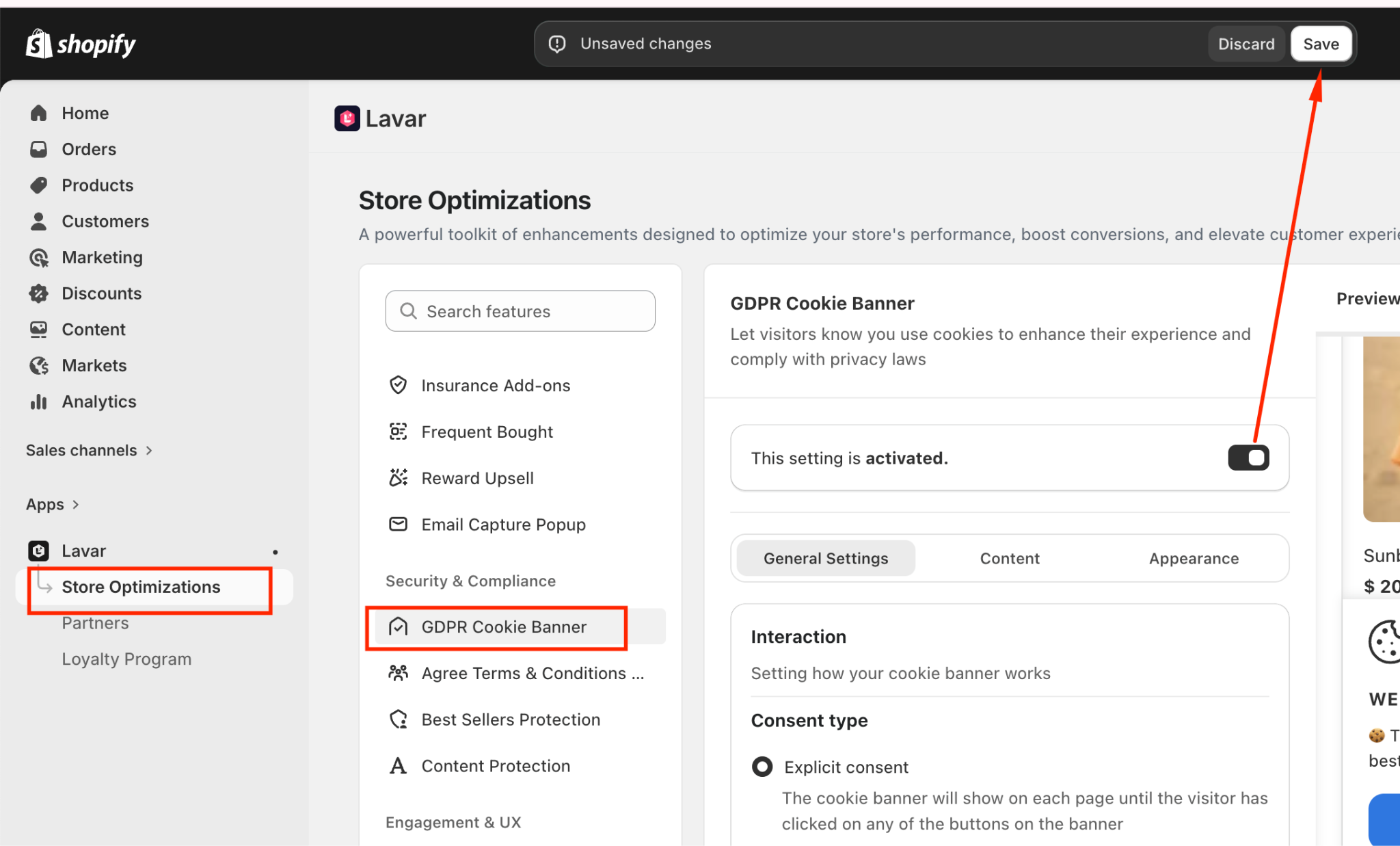
Step 2: Activate the feature GDPR Cookie Banner
- Open Lavar in your Shopify Admin
- Navigate to Store Optimizations → GDPR Cookie Banner
- Click Activate feature and Save
Step 3: Configure the GDPR Cookie Banner Settings
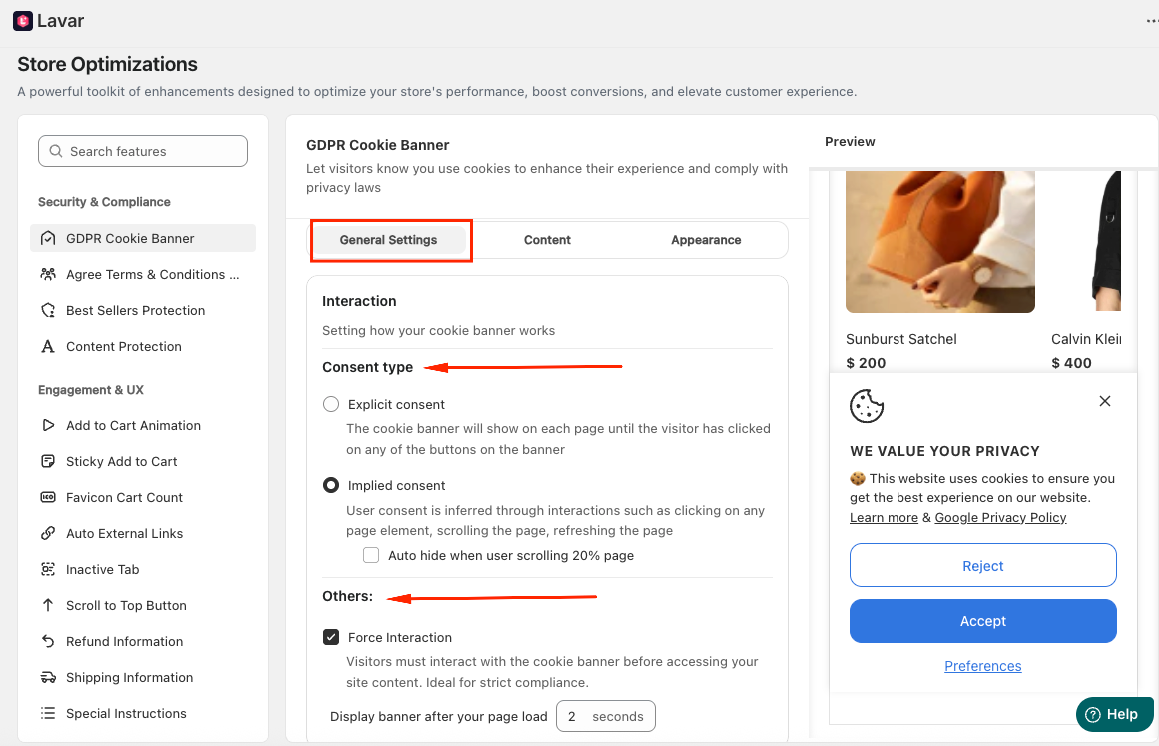
In the General Settings, configure the behavior and offer:
- Interaction Settings: Choose how user consent is collected
Consent Type
- Explicit consent: The banner will continue showing until the visitor clicks a button (Accept, Reject, etc.).
- Implied consent: Consent is inferred when users interact with the page (scrolling, clicking, refreshing).
Optional: Auto hide when user scrolls 20% of the page
Additional Controls
- Force Interaction: Visitors must interact with the cookie banner before accessing your site content. Ideal for strict compliance.
- Display banner after page load (e.g., 5 seconds)
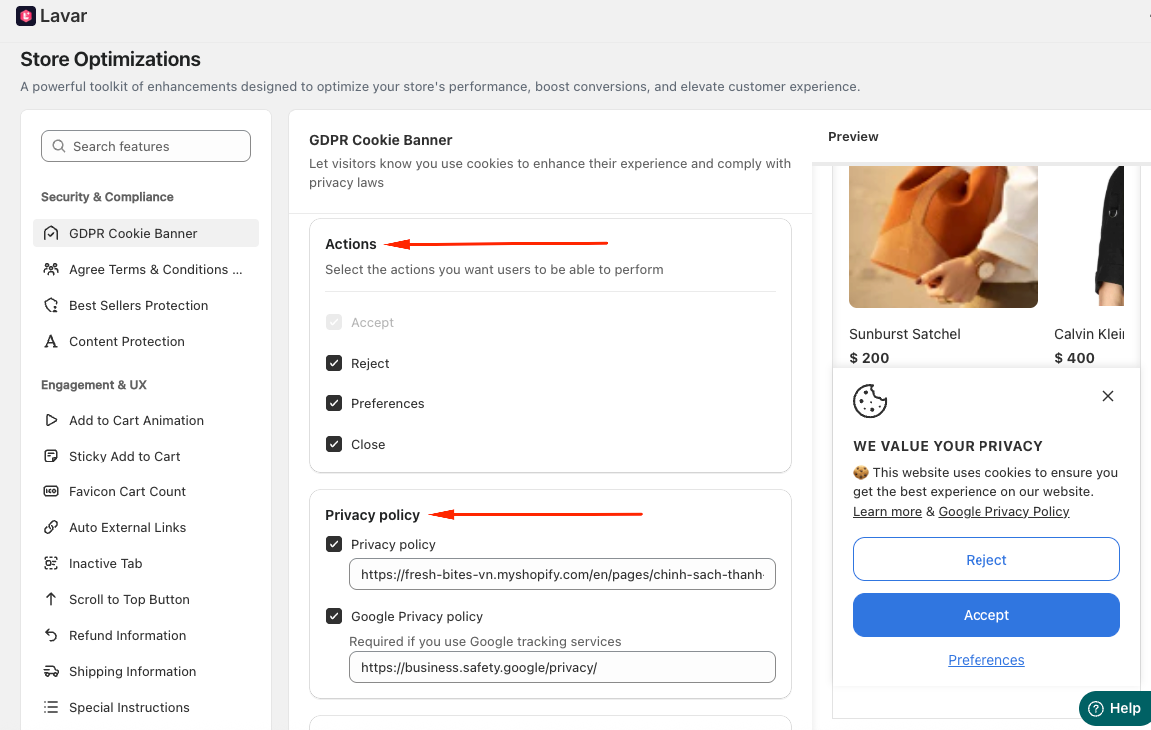
- Actions: Select which actions users can perform (Accept / Reject / Preferences / Close)
- Privacy Policy: Enter link of your own Privacy Policy or Google Privacy Policy
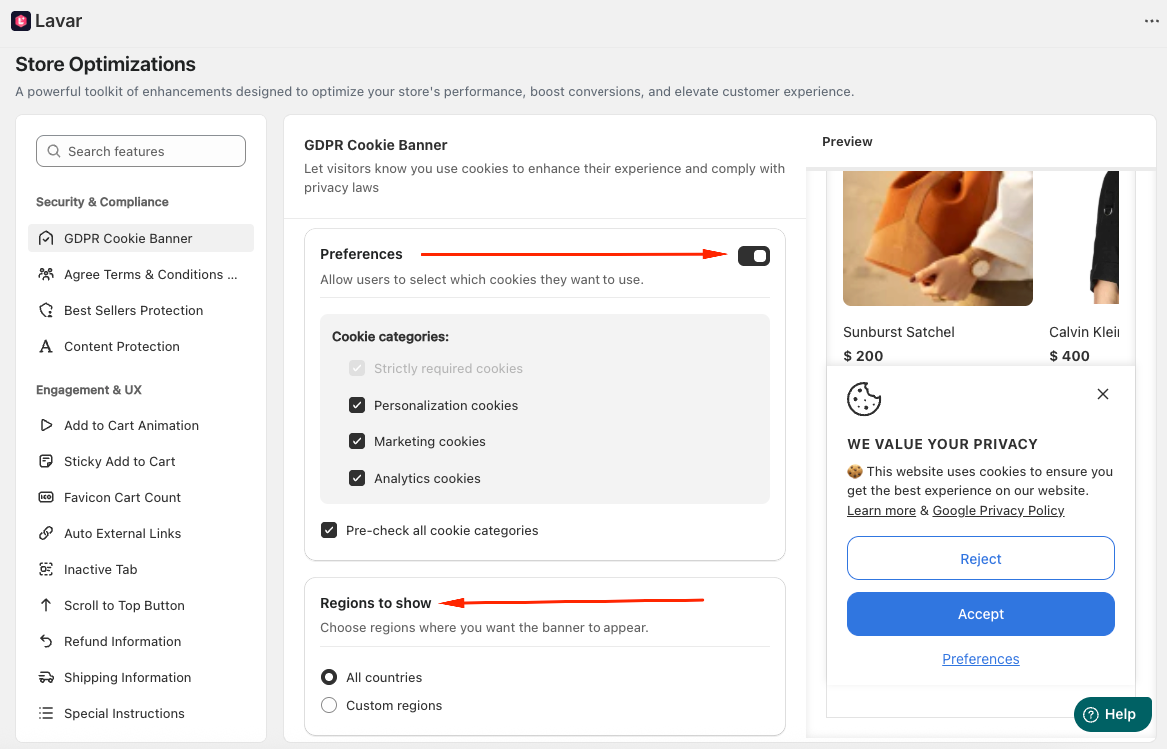
- Preferences Settings: Allow users to select which cookies they want to enable.
Cookie Categories:
- Strictly required cookies
- Personalization cookies
- Marketing cookies
- Analytics cookies
Optional: Pre-check all cookie categories
- Regions to Show: Choose where the banner should appear:
- All countries
- Custom regions: Europe (GDPR), US (CCPA + US State Laws), Brazil (LGPD), Canada (PIPEDA) or Japan (APPI)
In the Content Settings, set up these informations:
- Cookie content: Display on the primary modal (or banner)
- Preferences popup content: Display on the Preferences modal
Including descriptions for:
- Strictly required cookies
- Personalization cookies
- Analytics cookies
- Marketing cookies
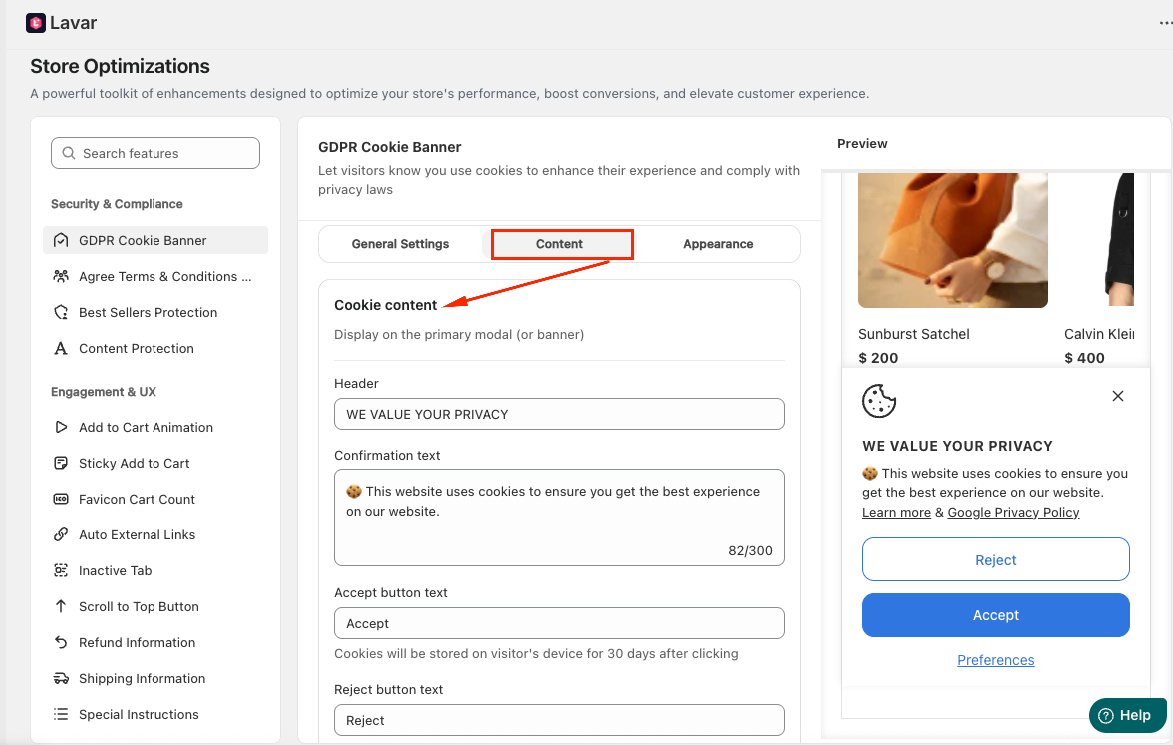
Note: Cookies will be stored on visitor's device for 30 days after clicking. If visitors switch browsers, devices, or clear their browser cookies, the banner may appear again.
Step 4: Customize the GDPR Cookie Banner Appearance
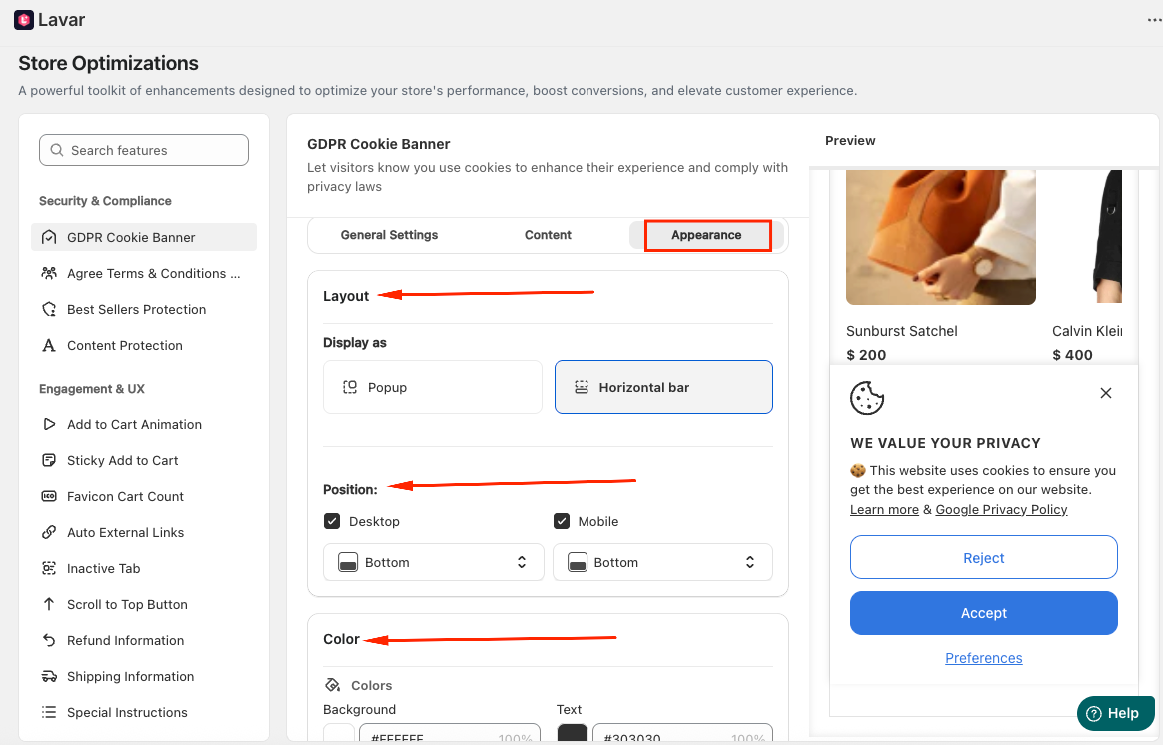
In the Appearance Settings section, you can customize how the cookie banner looks on your storefront:
- Layout: Choose how the banner is displayed as a Popup modal or Horizontal Bar
- Position: Select where the banner appears on the Top or Bottom for Desktop and Mobile
- Colors: Apply custom colors to match your store branding and overall design.
If you need further assistance, please feel free to contact us at [email protected].