How to Set Up Product Labels & Badges in Lavar
Add product labels and badges to highlight discounts, new products, or popular items so customers can quickly notice important products while browsing your store.
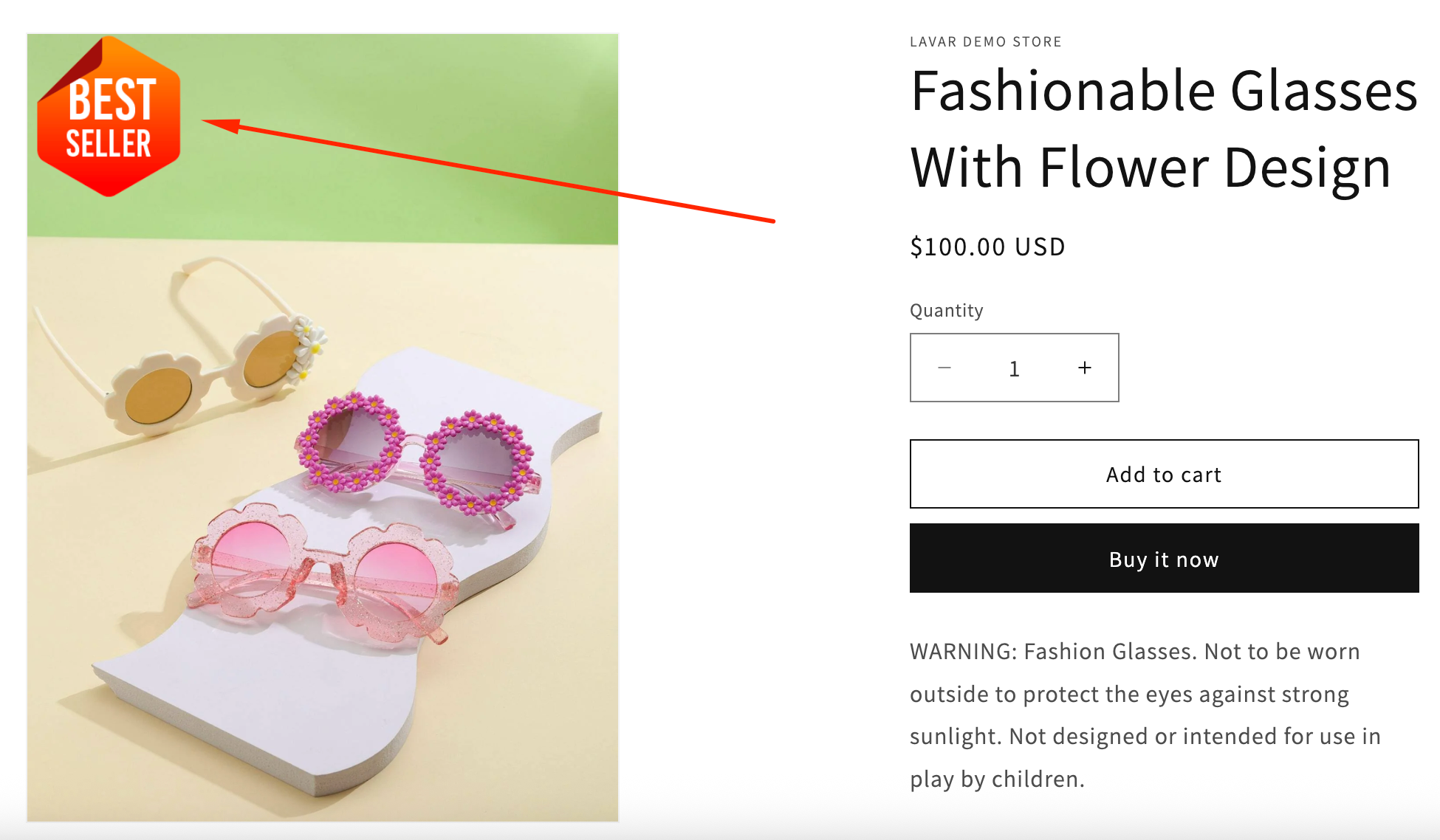
Step 1: Enable Lavar in Your Theme
Make sure the Lavar app embed is enabled in your Theme Editor before creating the Product Labels & Badges
Step 2: Create Labels & Badges for Products
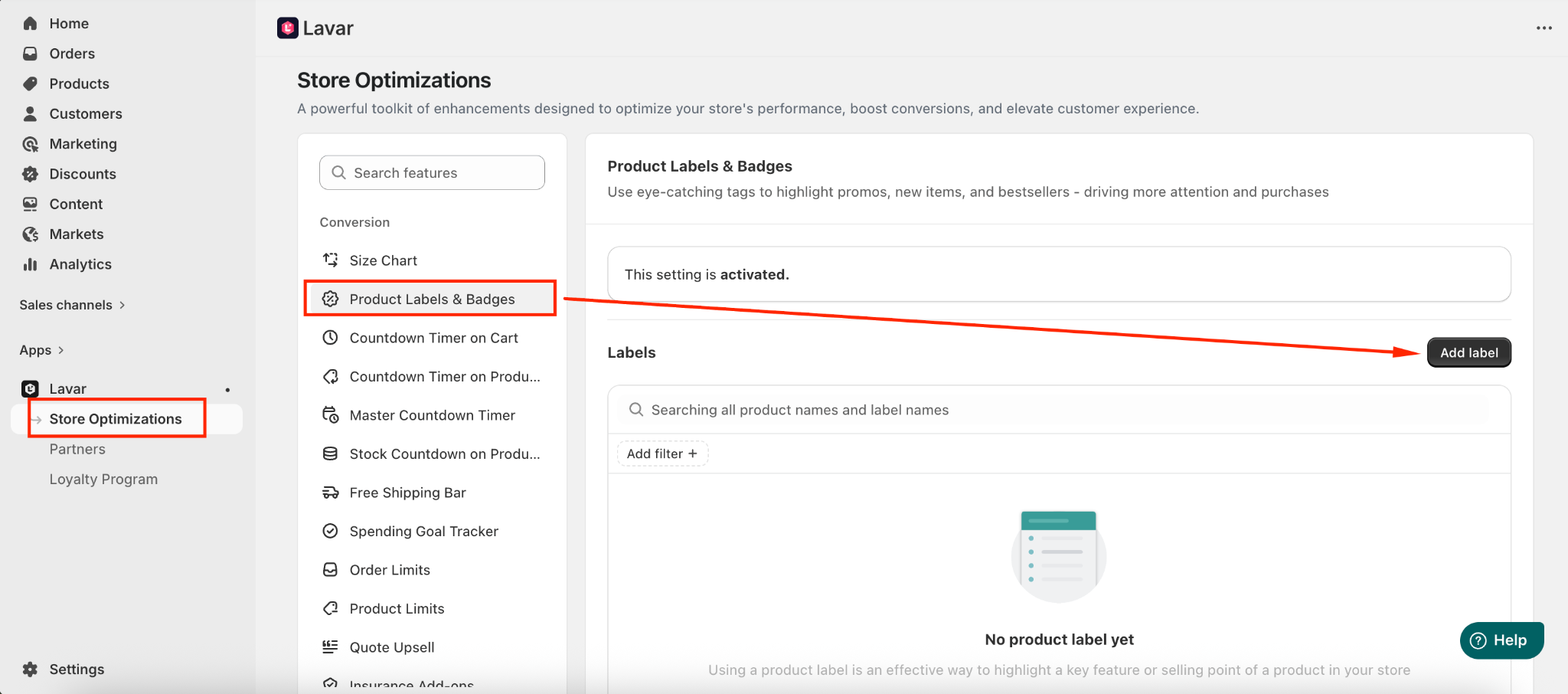
- Open Lavar in your Shopify Admin.
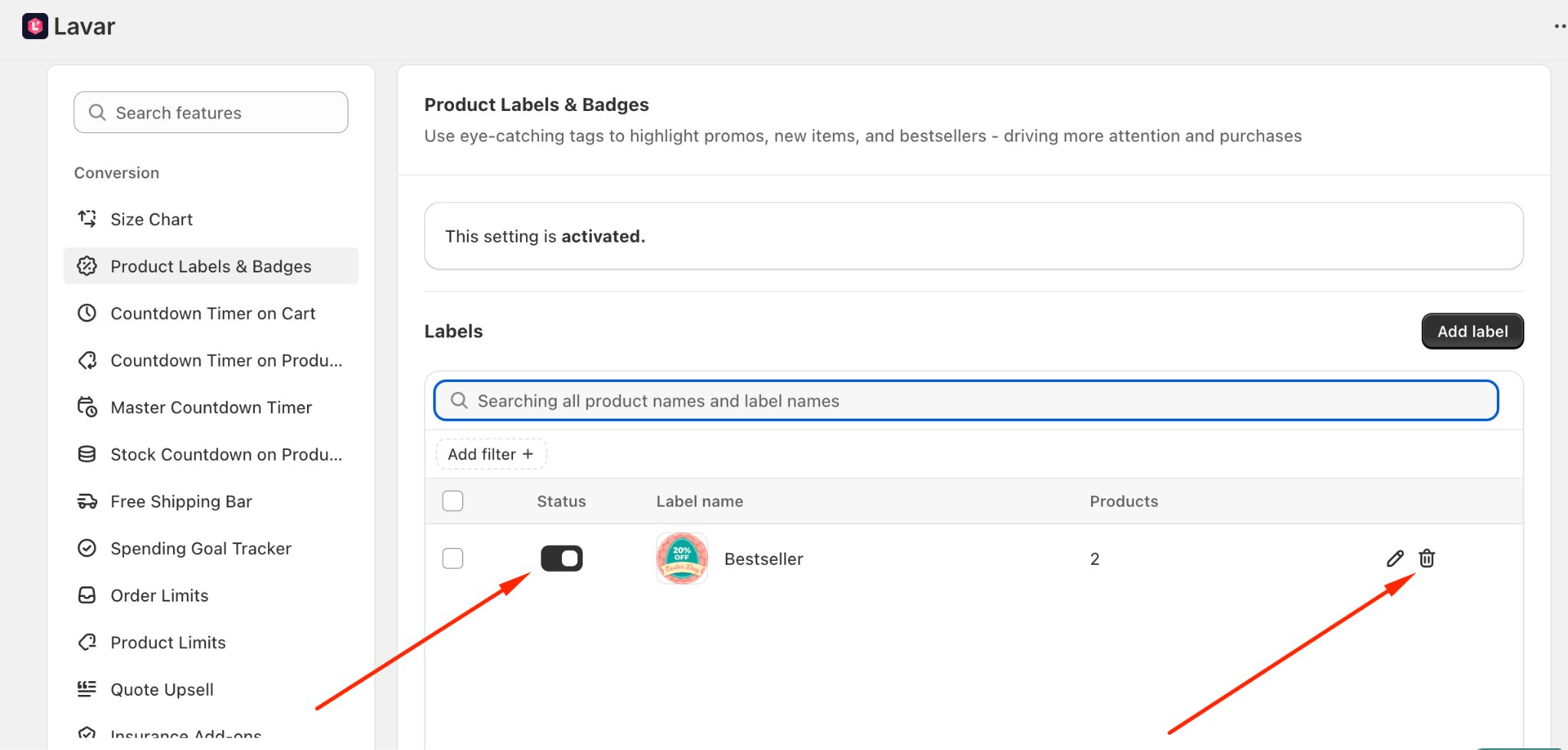
- Navigate to Store Optimizations → Product Labels & Badges
- Click Add Label.
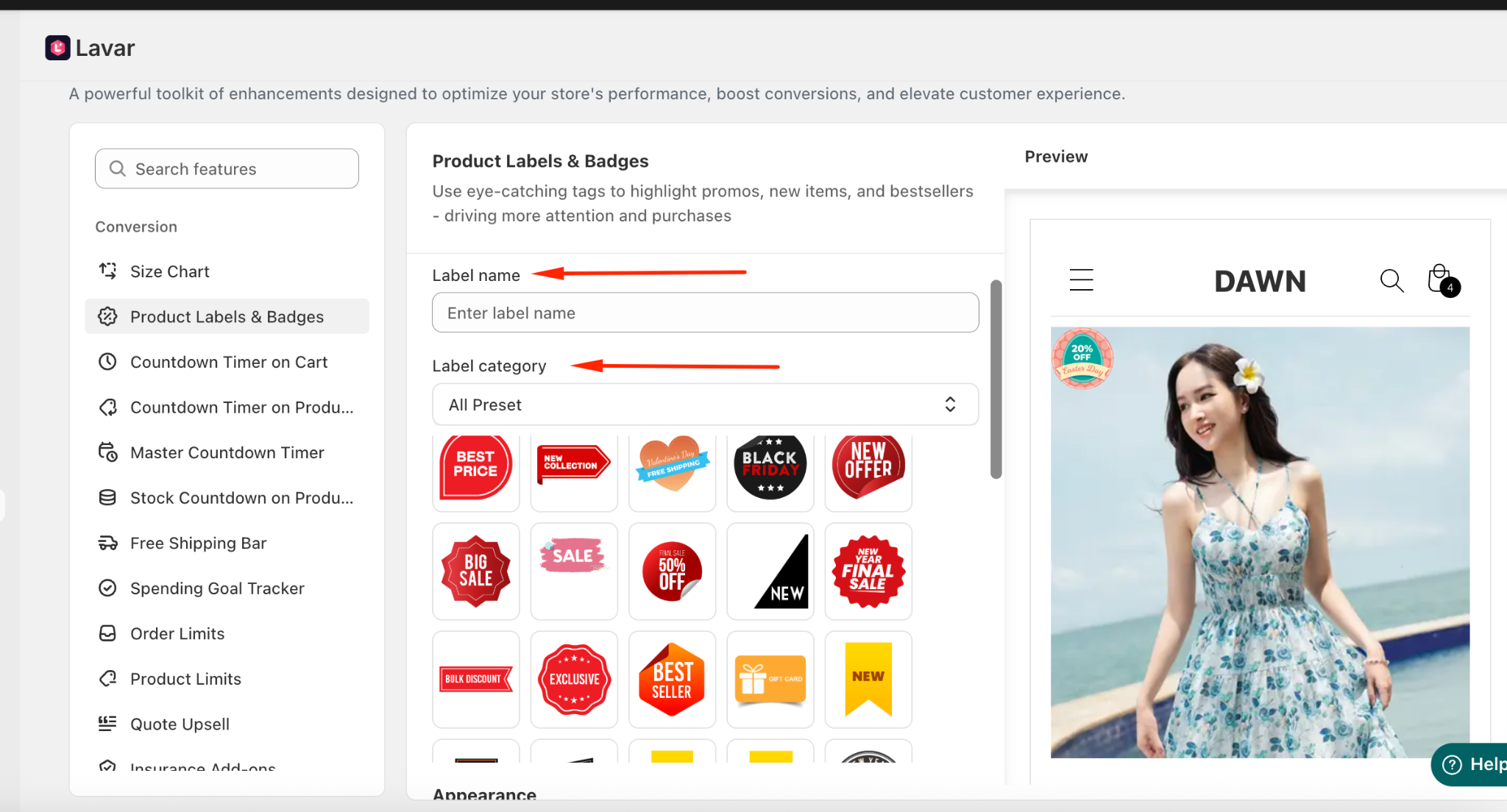
Then configure the label:
- Enter Label name (example: Bestseller)
- Choose a label design from the available list. You can also browse labels by category.
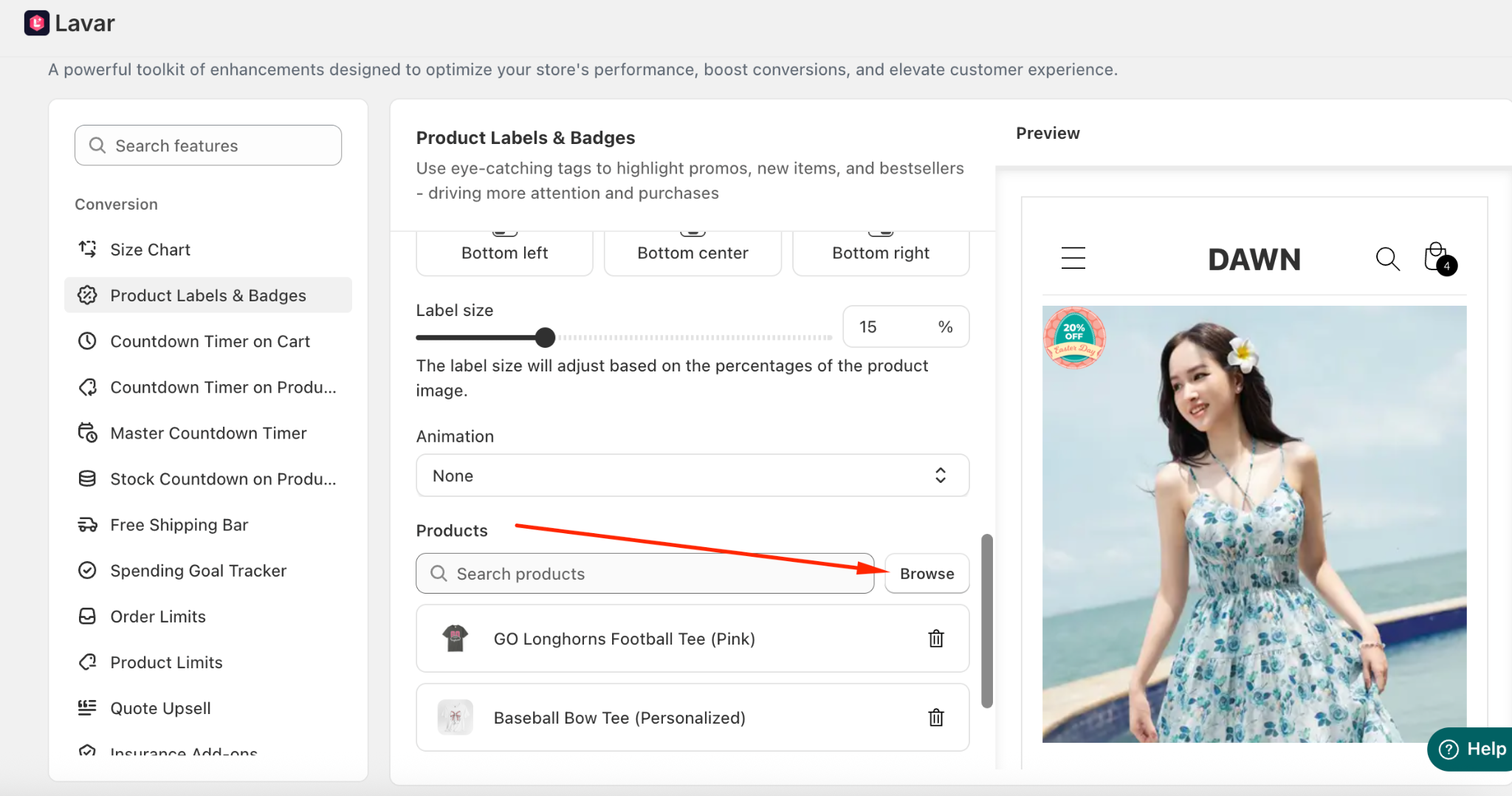
Assign Products: Select the products where the label will appear.
After creating the label, you can Activate or Delete it anytime.
Step 3: Customize Label Appearance
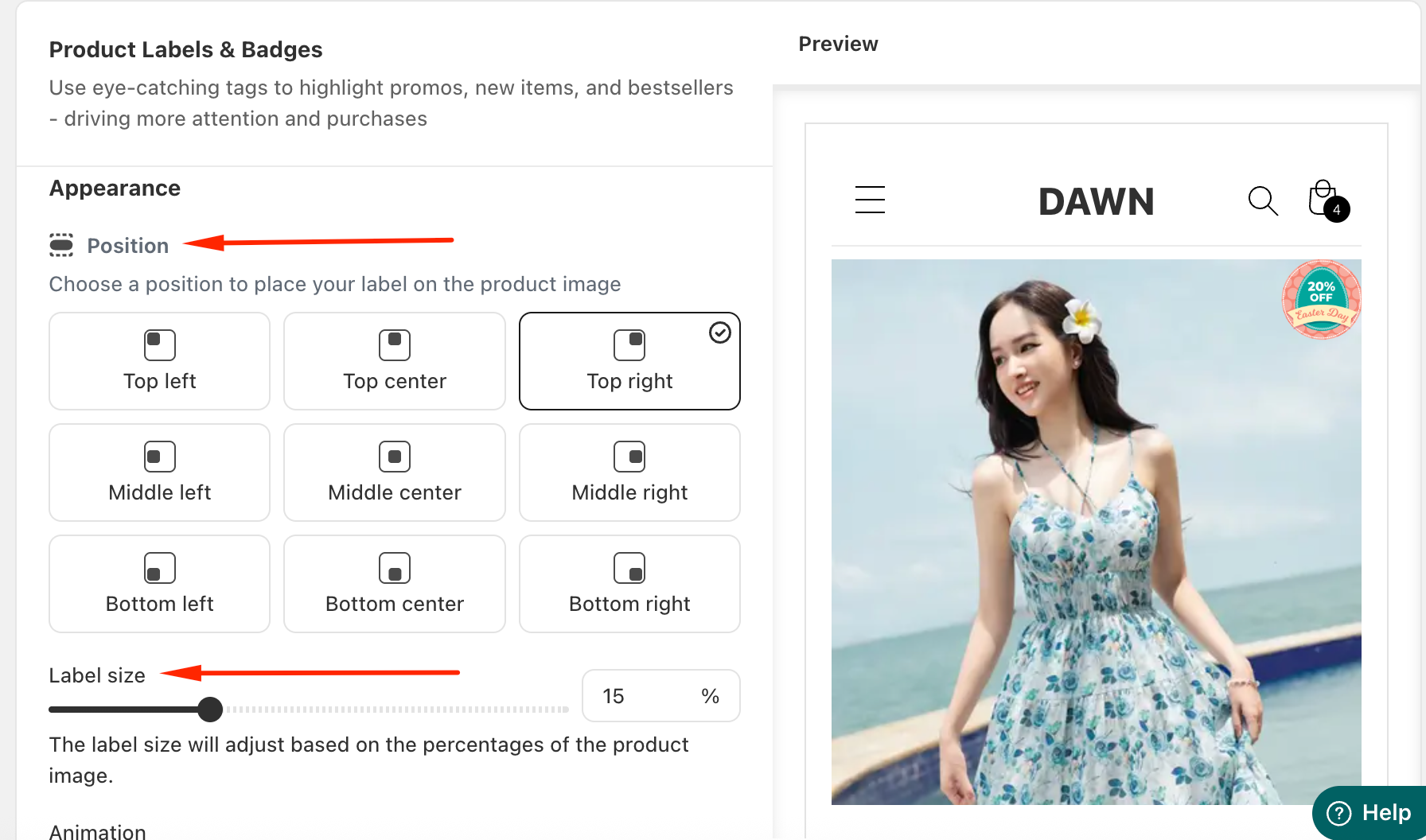
In the Appearance Settings section, you can change the label position and its size to display on the product image.
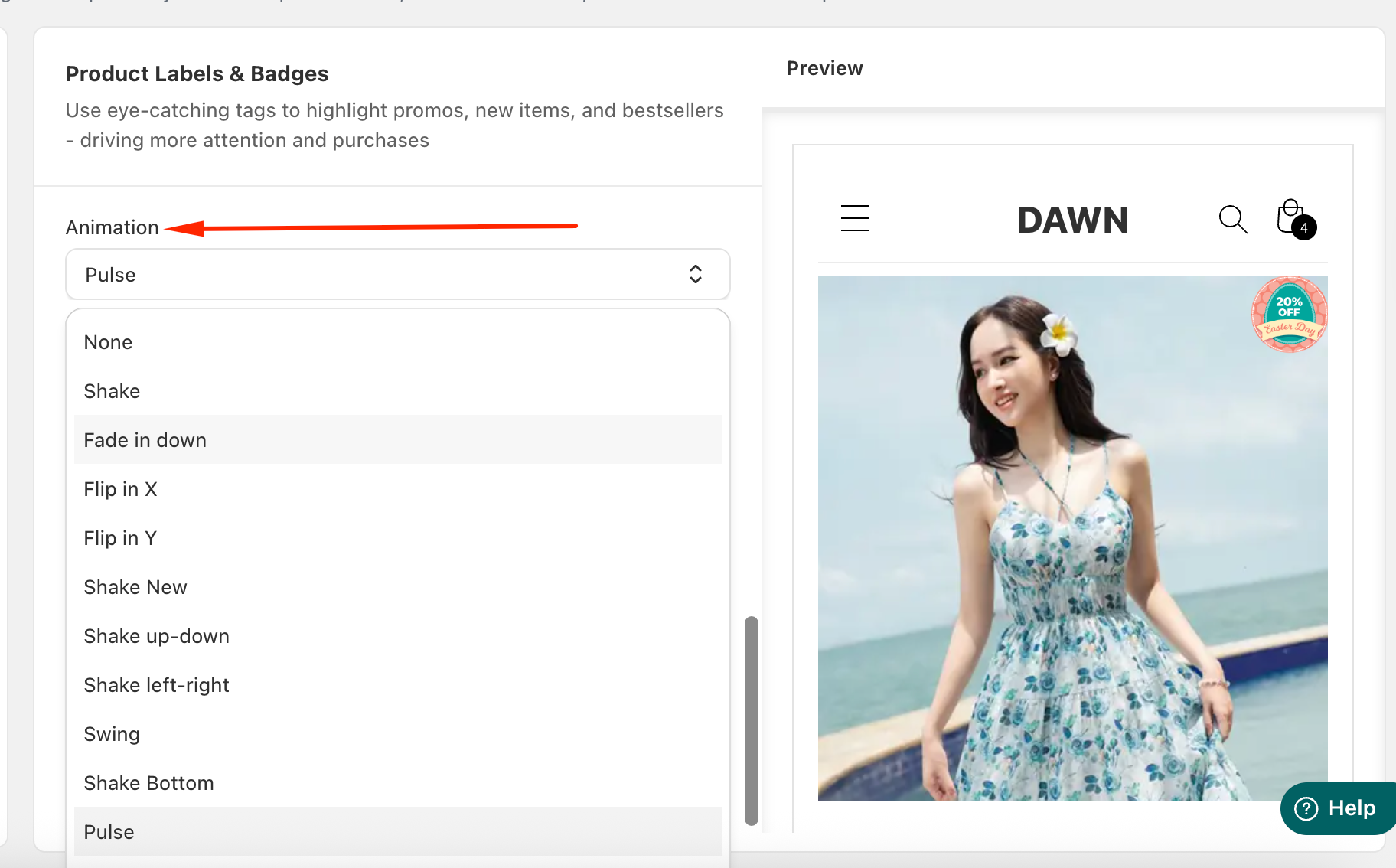
And select an animation effect to make the label more noticeable:
After activating the label, please check your storefront to make sure it displays as configured.
If you need further assistance, please feel free to contact us at [email protected].