How to Set Up Sales Pop-up in Lavar
Show real-time purchase notifications on your storefront to build social proof and create a sense of urgency. Sales Pop-ups highlight recent purchases or activity, helping reassure shoppers that others are buying from your store and encouraging them to complete their own purchase.
Step 1: Enable Lavar in Your Theme
Make sure the Lavar app embed is enabled in your Theme Editor first.
Step 2: Activate the Sales Pop-up feature
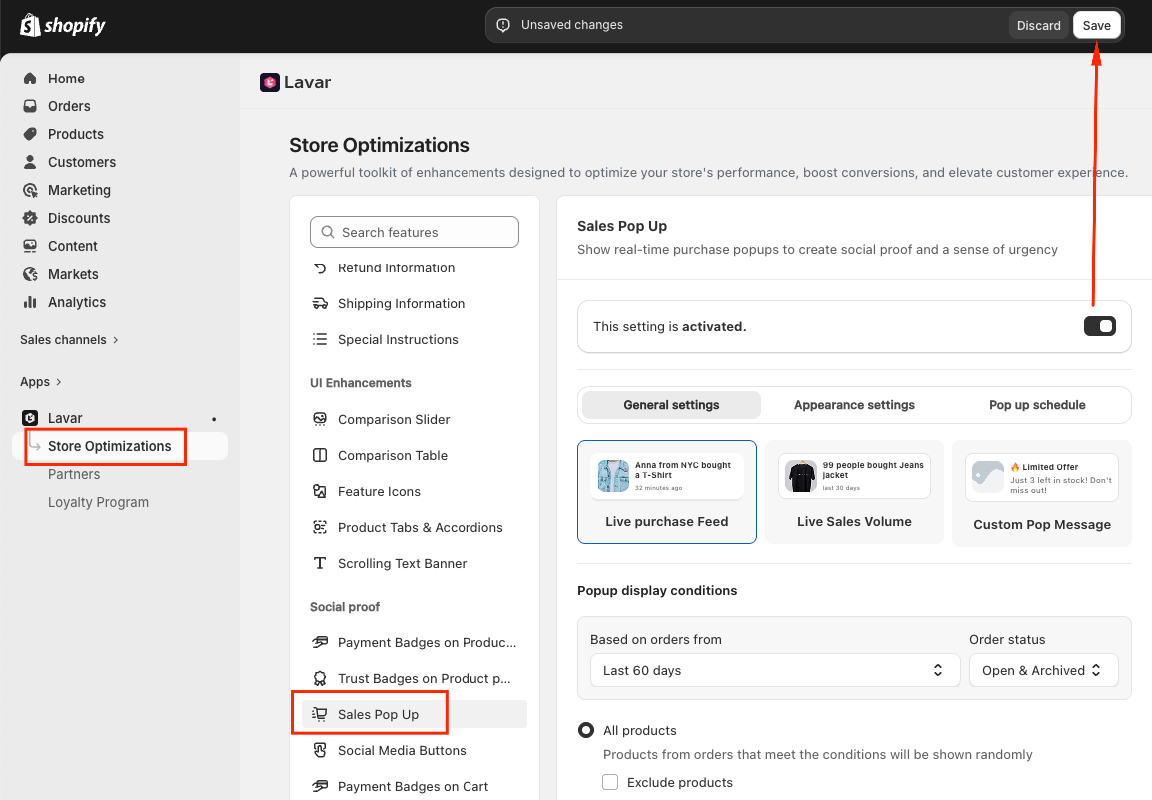
- Open Lavar in your Shopify Admin.
- Navigate to Store Optimizations → Sales Pop-up
- Click Activate feature and Save.
Step 3: Configure the Sales Pop-up Settings
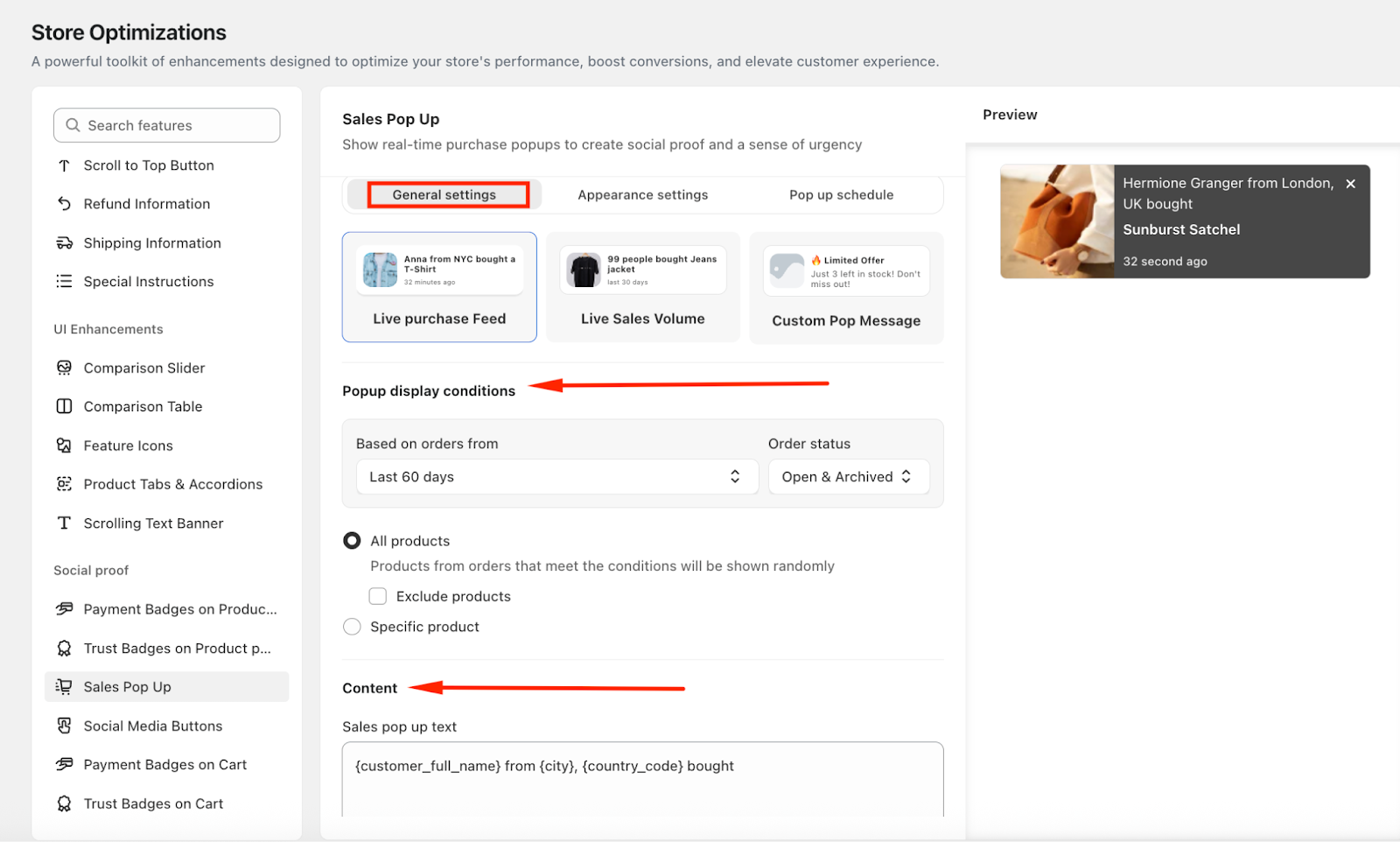
- Live Purchase Feed: This option displays real-time notifications showing recent purchases made in your store.
For example: Hermione Granger from London, UK bought Sunburst Satchel 32 seconds ago
You can configure the popup display conditions:
- Based on orders from: Today, Yesterday, Last 7 / 30 / 60 days
- Order status: Open or Archived
- Choose All Products or Specific Products
Next, enter the content for the pop-up
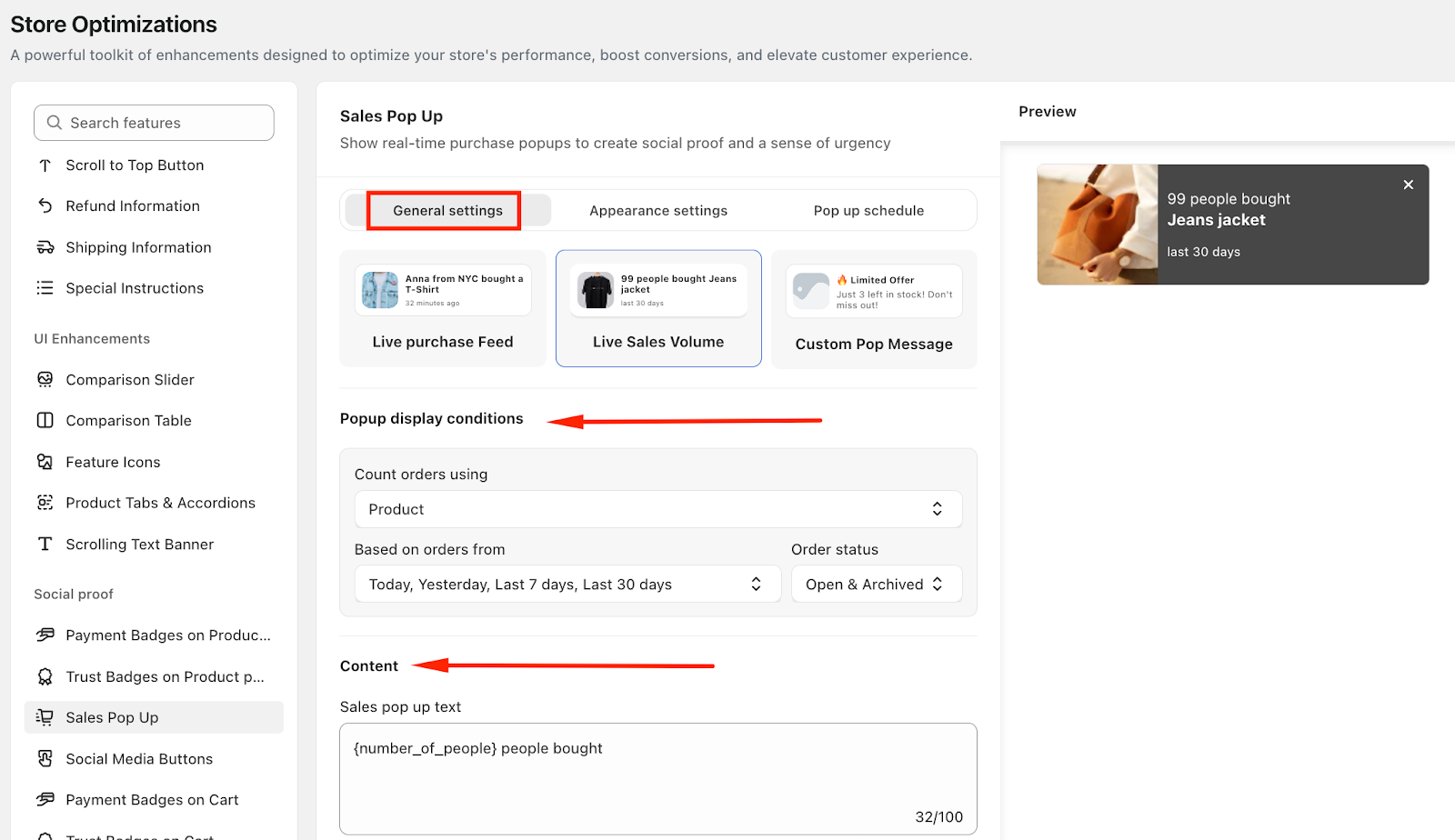
- Live Sales Volume: This option highlights how many people have purchased a product within a specific time period.
For example: 99 people bought this Jeans Jacket in the last 30 days
You can configure the popup display conditions:
- Count orders using: Product / Product Category / Collection
- Based on orders from: Today, Yesterday, Last 7 / 30 / 60 days
- Order status: Open or Archived
- Then enter the content for the popup
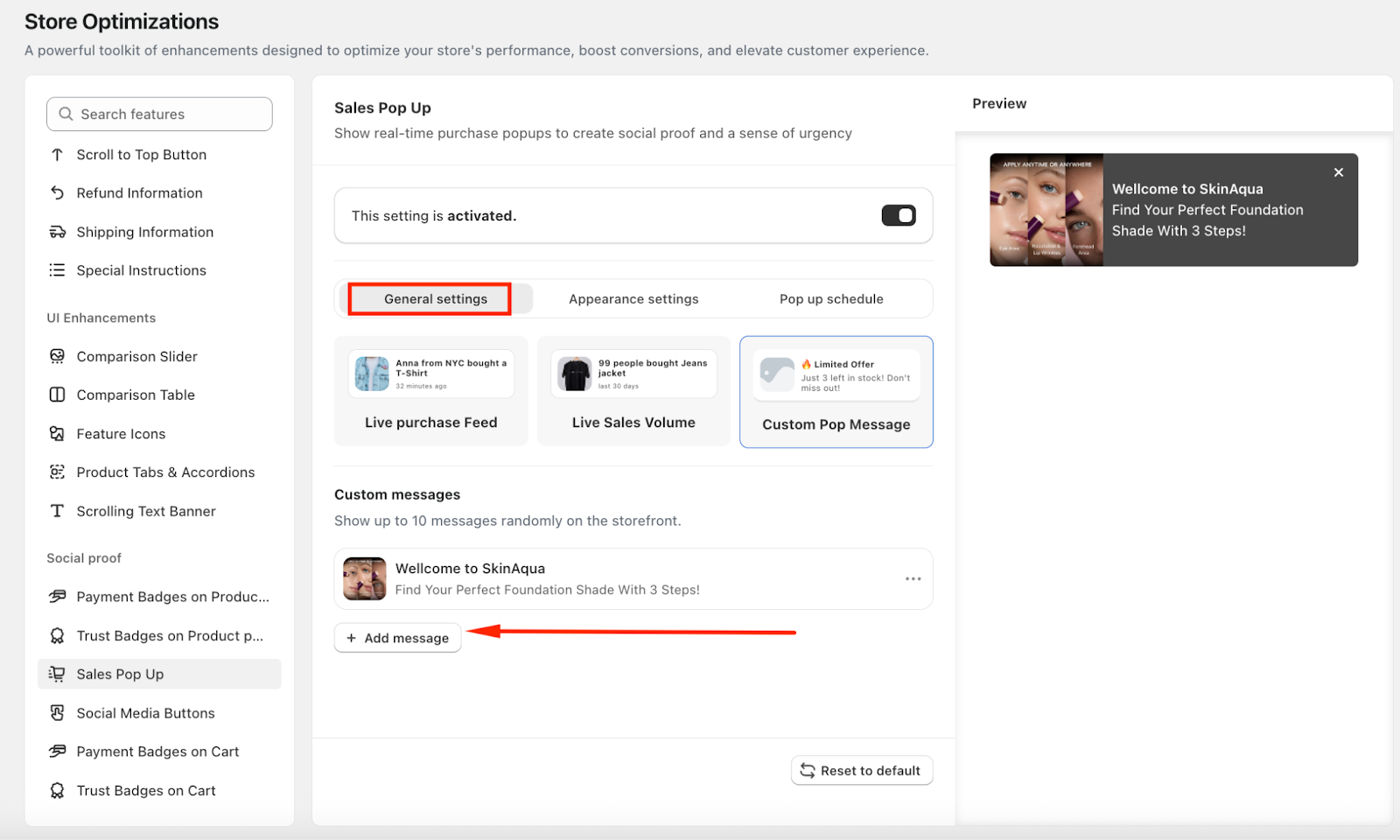
- Custom Popup Message: You can create custom pop-up messages to highlight promotions, announcements, or special offers.
You can add up to 10 messages, which will display randomly on your storefront.
For each message, you can configure: Title, Message, Image, Link to a product or promotional page
Step 4: Customize the Sales Pop-up Appearance
Navigate to the Appearance settings tab, where you can configure how and when the pop-ups appear.
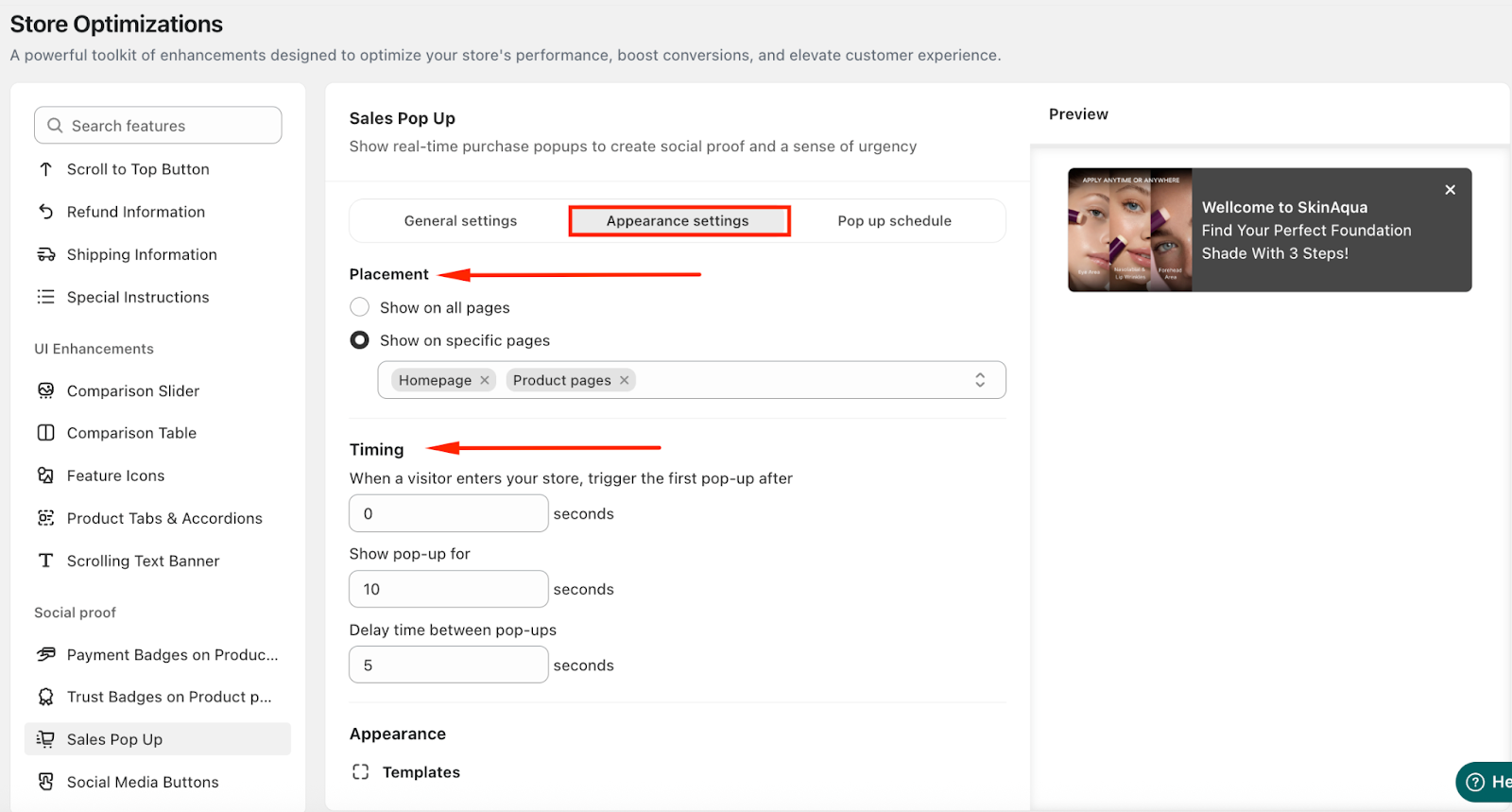
Placement: Show on All Pages or Specific Pages (Homepage, Collection page, Product page, Cart page)
Timing:
- Trigger the first pop-up after a visitor enters your store (seconds)
- Show pop-up for (seconds)
- Delay time between pop-ups (seconds)
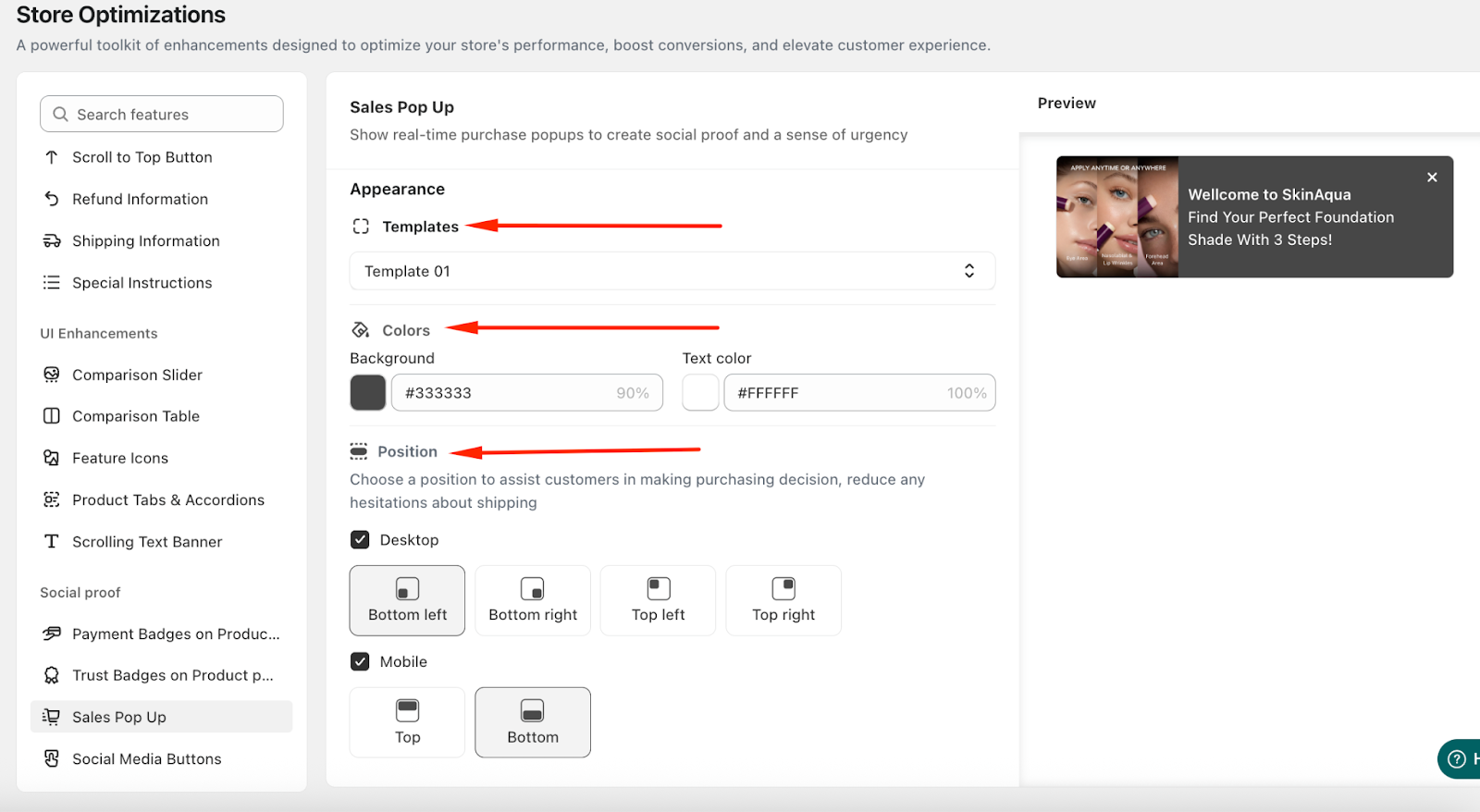
In the Appearance section, you can:
- Choose the template you prefer
- Apply custom colors to match your store design
- Choose the pop-op position for both desktop and mobile
Step 5: Schedule the Sales Pop Up
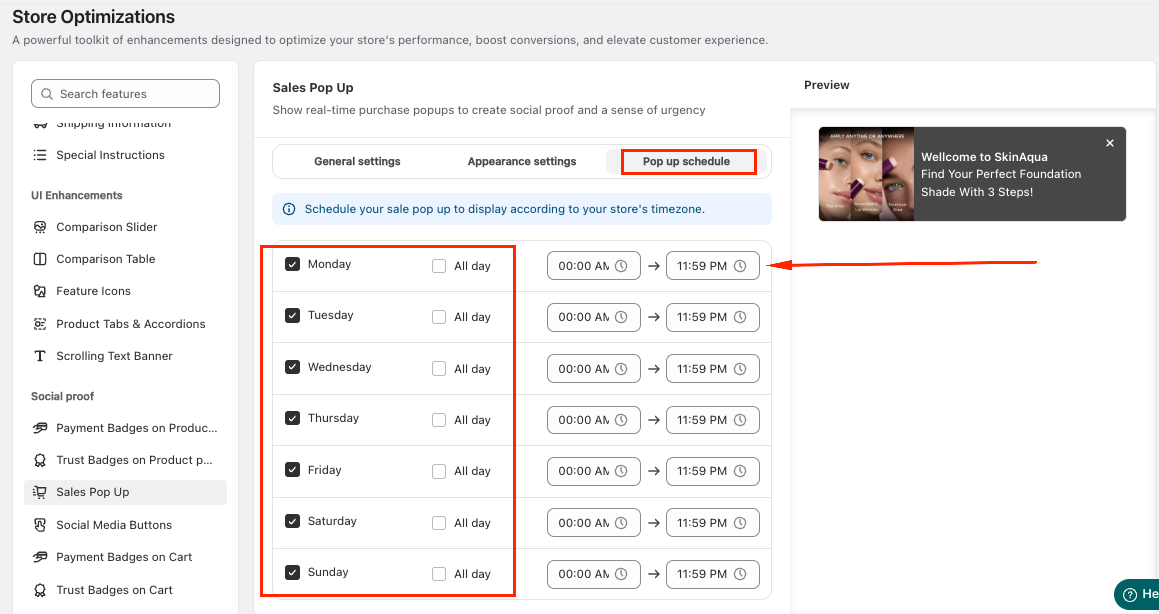
You can schedule when the Sales Pop-ups will display according to your store’s timezone.
Choose a specific day of the week, set a time range, or allow the pop-ups to run all day.
If you need further assistance, please feel free to contact us at [email protected].