How to Set Up Spending Goal Tracker in Lavar
The Spending Goal Tracker helps encourage higher order values by visually showing customers their progress toward a discount. As shoppers add items to their cart, the tracker updates automatically to motivate them to reach the goal.
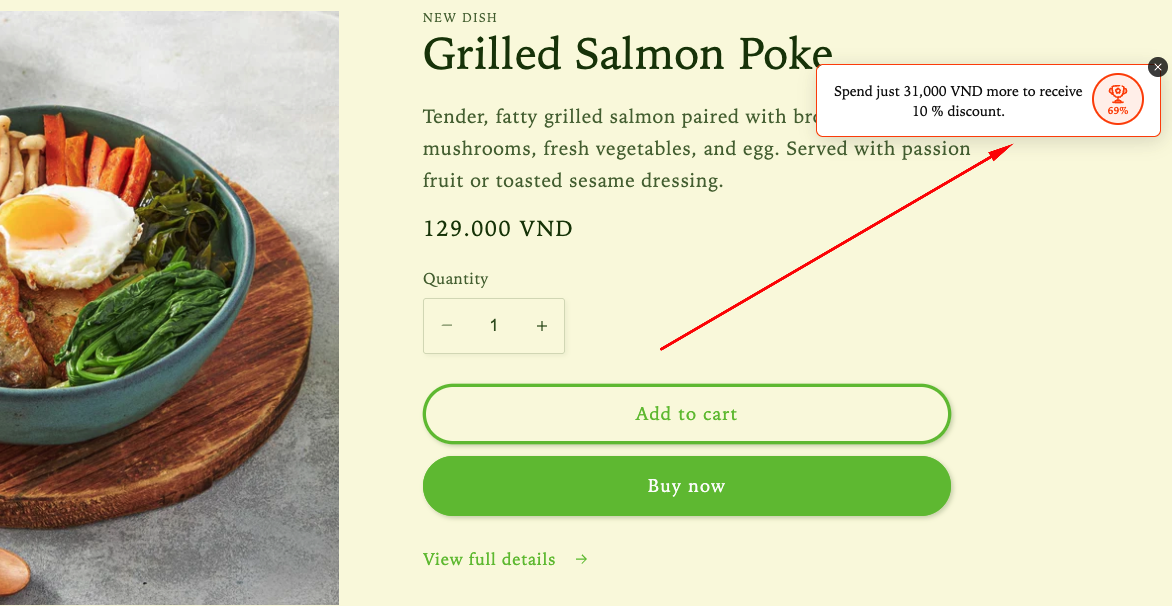
Step 1: Enable Lavar in Your Theme
Make sure the Lavar app embed is enabled in your Theme Editor first.
Step 2: Activate the Spending Goal Tracker feature
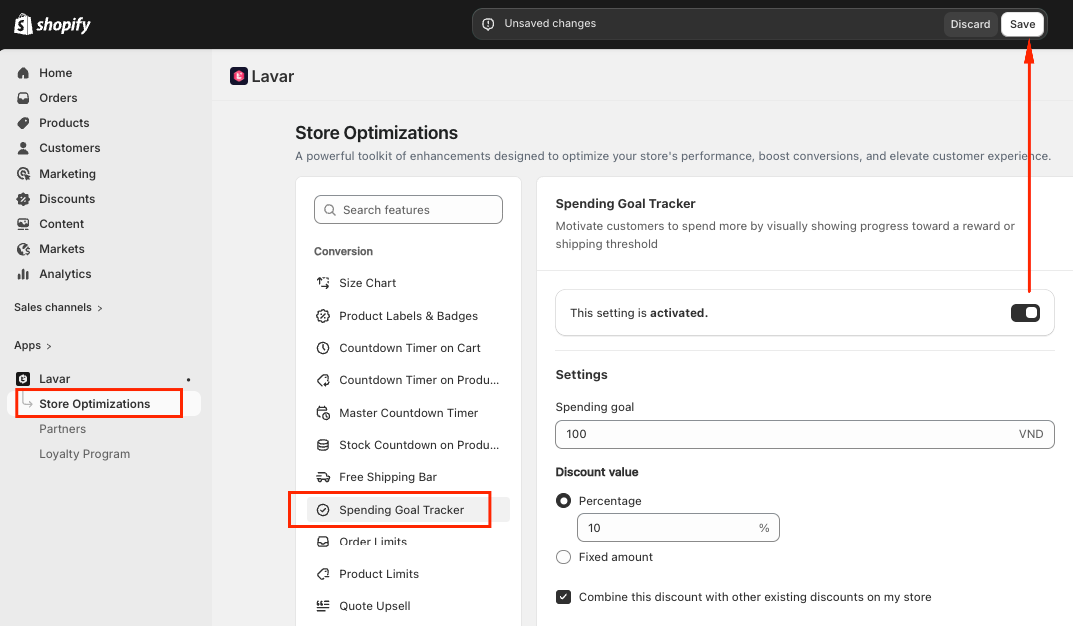
- Open Lavar in your Shopify Admin
- Navigate to Store Optimizations → Spending Goal Tracker
- Click Activate feature and Save
Step 3: Configure the Spending Goal Tracker
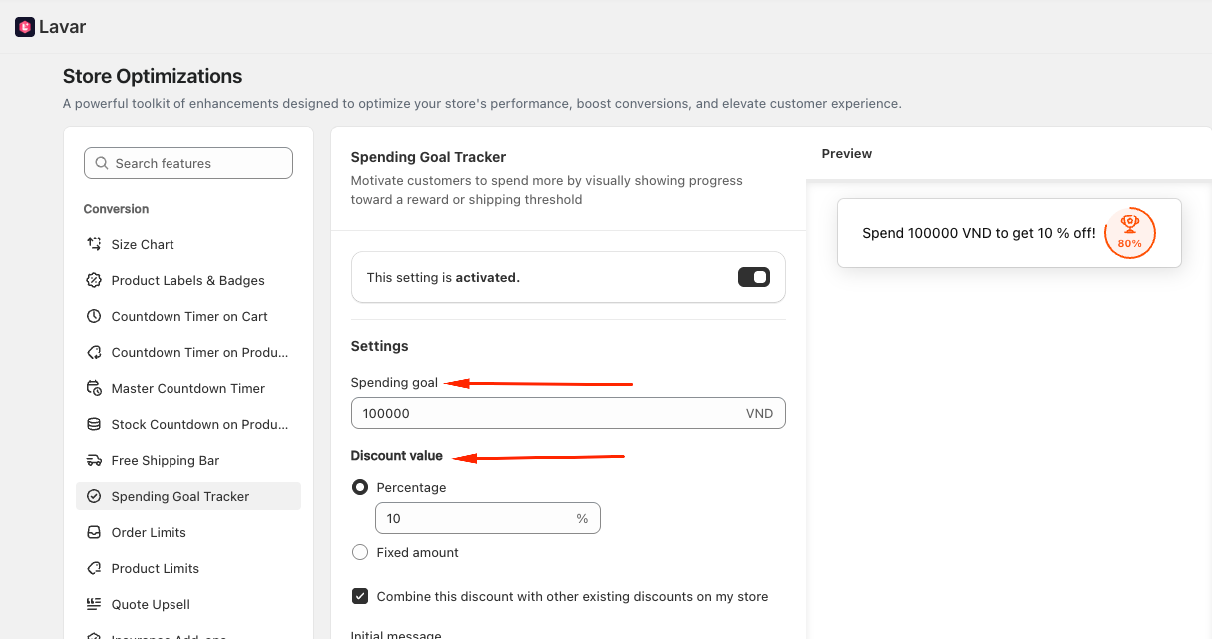
Set Spending Goal
- Enter the spending goal value customers need to reach.
- Choose the discount value applied after reaching the goal: Percentage discount, or Fixed amount discount
- Enable Combine this discount with other existing discounts if you want it to work together with other promotions.
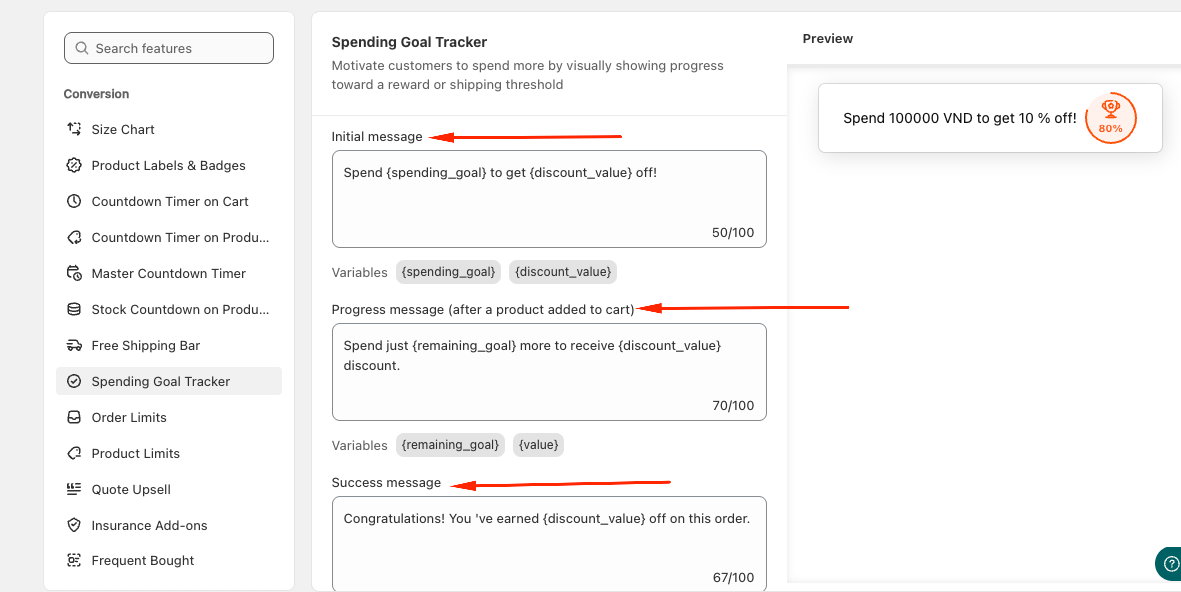
Input Messages
Customize the messages displayed at different stages of the customer journey:
- Initial message — displayed when the cart has not yet reached the spending goal.
- Progress message — displayed after customers add items to the cart but have not met the goal yet.
- Success message — displayed once the spending goal has been reached and the reward is unlocked.
You can edit these messages to match your promotion campaign and store tone.
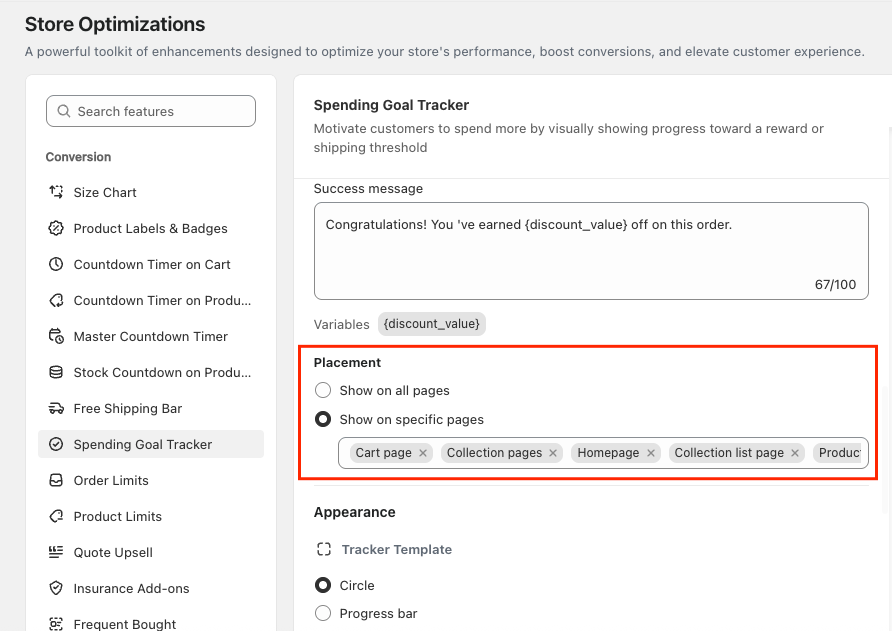
Display Pages
Choose where the Spending Goal Tracker appears:
- All pages
- Specific pages such as Cart page, Homepage, or Collection page.
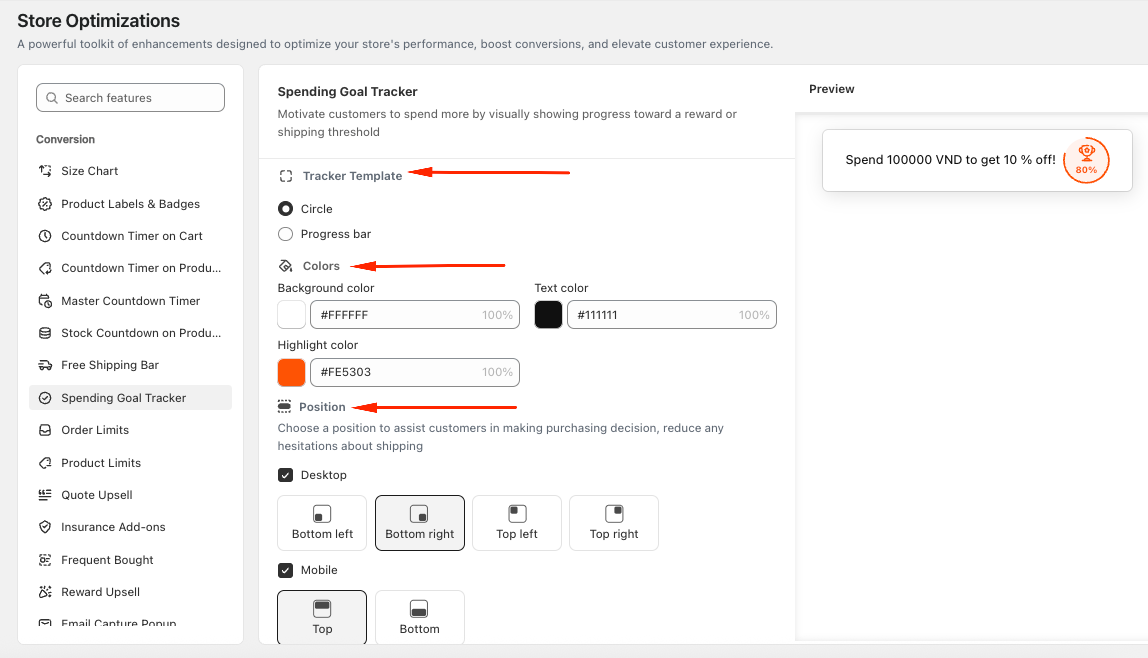
Step 4: Customize the Spending Goal Tracker Appearance
In the Appearance section, you can choose the Tracker Template, Apply Colors to match your store design and select Display Positions for desktop and mobile devices.
If you need further assistance, please feel free to contact us at [email protected].