How to Set Up Stock Countdown on Product page
The Stock Countdown helps create urgency by showing customers when product inventory is running low. Displaying limited stock availability motivate customers to complete their purchase sooner before items sell out.
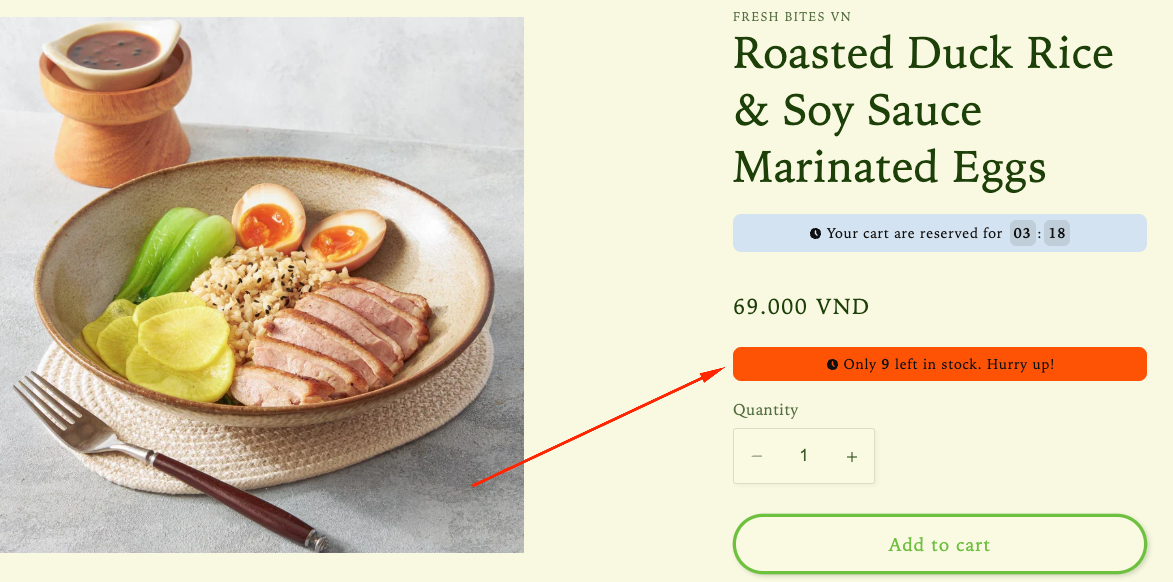
Step 1: Enable Lavar in Your Theme
Make sure the Lavar app embed is enabled in your Theme Editor first.
Step 2: Add Stock Countdown on Product page
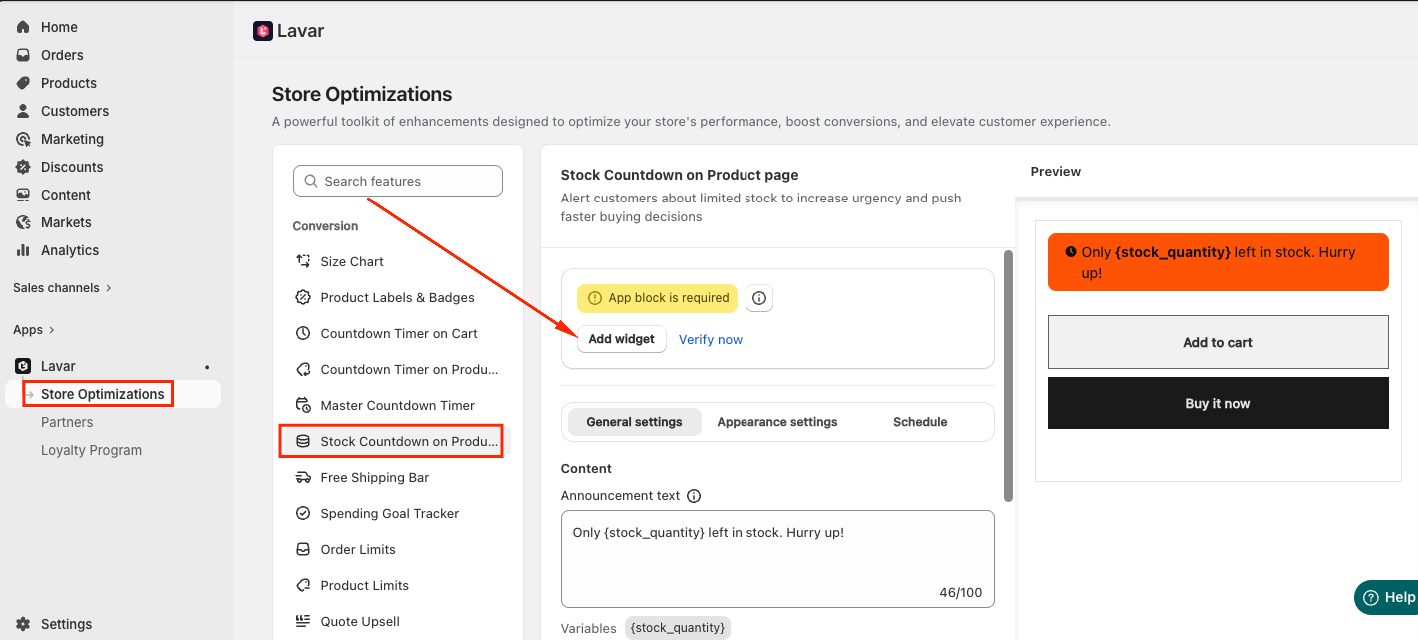
- Open Lavar in your Shopify Admin.
- Navigate to Store Optimizations → Stock Countdown on Product page
- Click Add Widget.
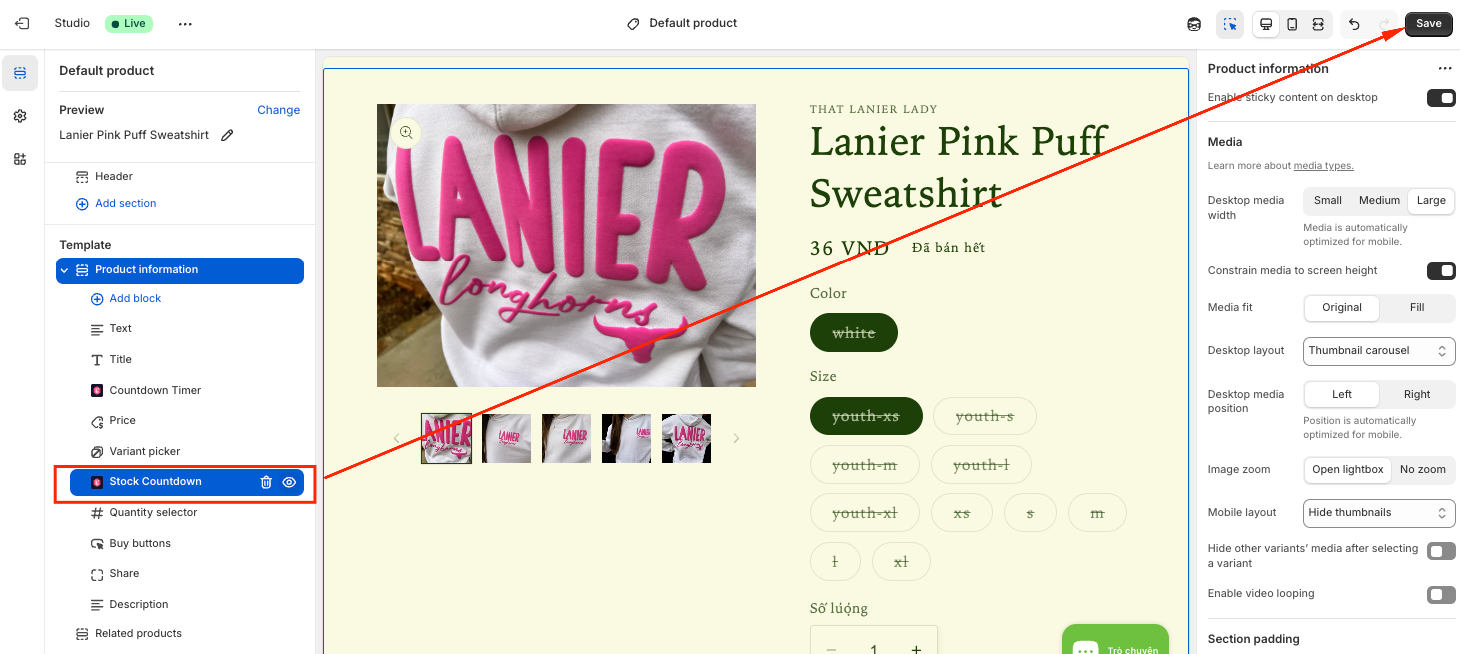
- You will be directed to the Theme Editor page. Drag and place the Stock Countdown block in your desired position and click Save:
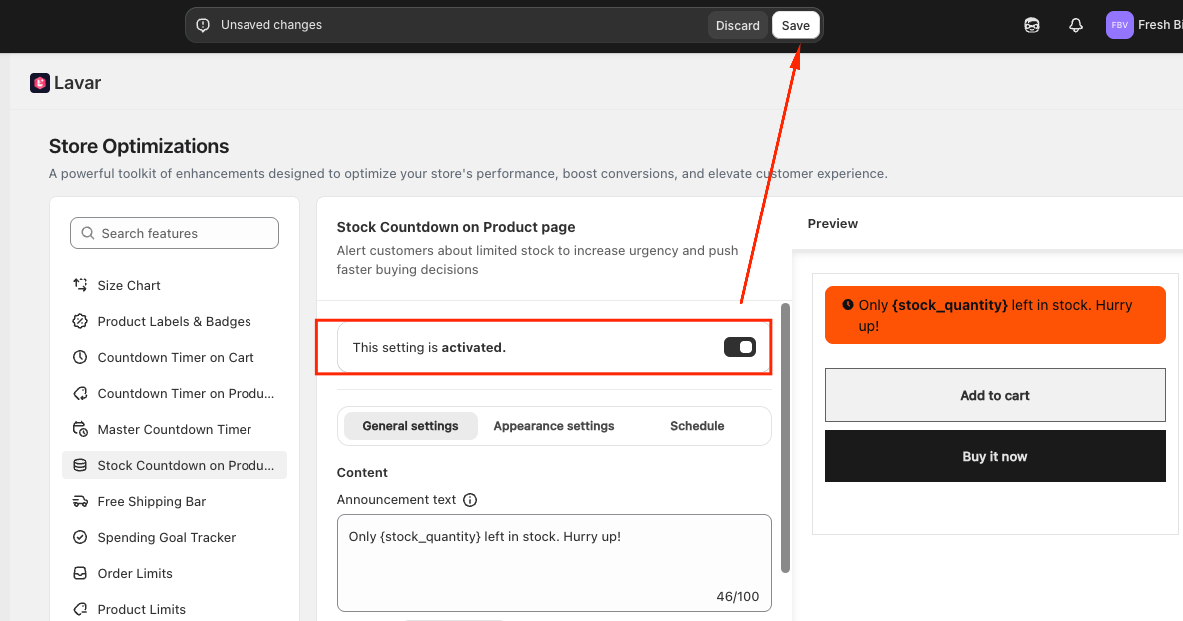
- After setup, return to the app and click Verify Now to confirm the app block was added correctly. Then you can Activate the feature to see it on the storefront.
Step 3: Configure the Stock Countdown Settings
- Enter the Announcement Text displayed with the Stock Countdown.
- Choose which products will show the Stock countdown section in Display Settings.
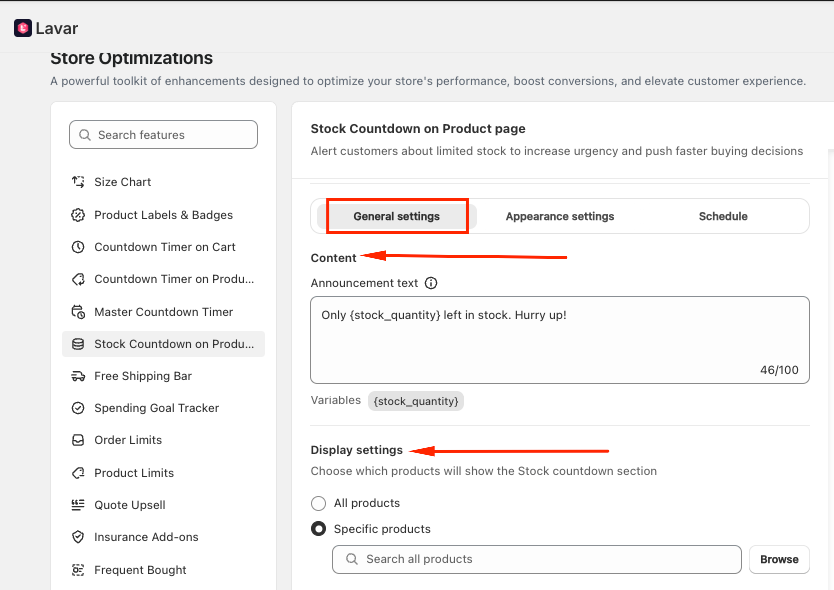
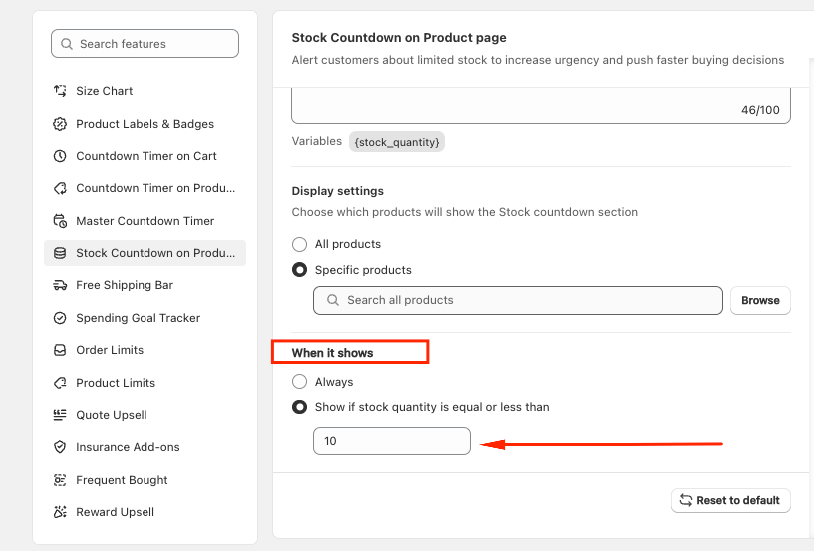
- Set the logic when it shows: Always or Show if stock quantity is equal or less than a number
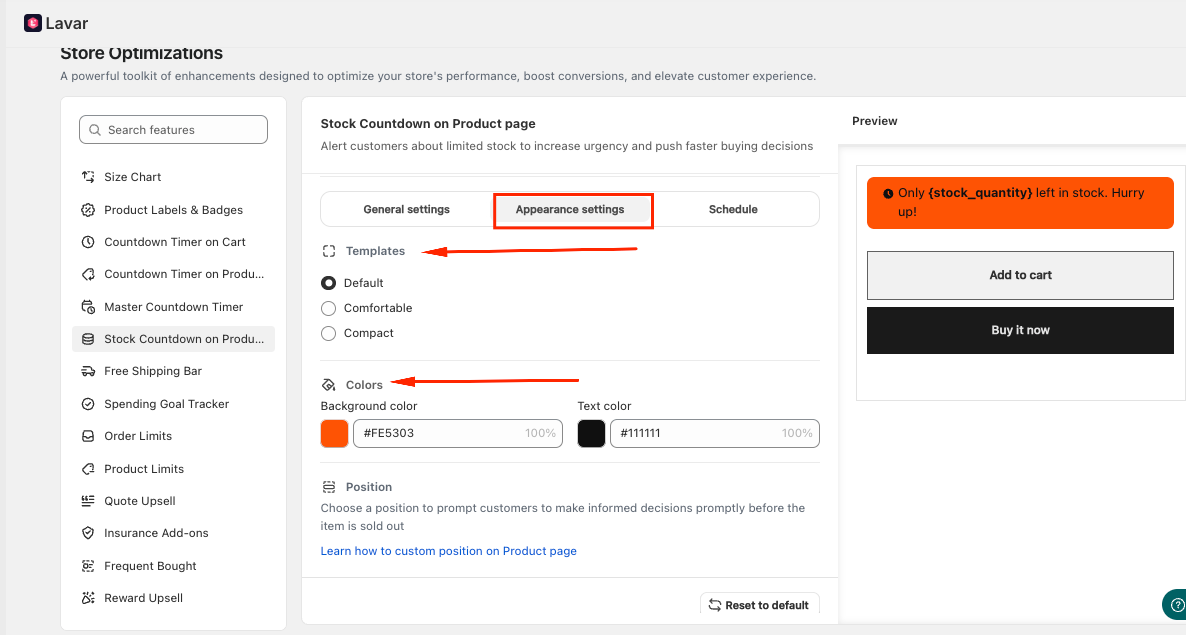
Step 4: Customize the Stock Countdown Appearance
In the Appearance Settings section, you can: Select a template and Apply colors for the Stock Countdown
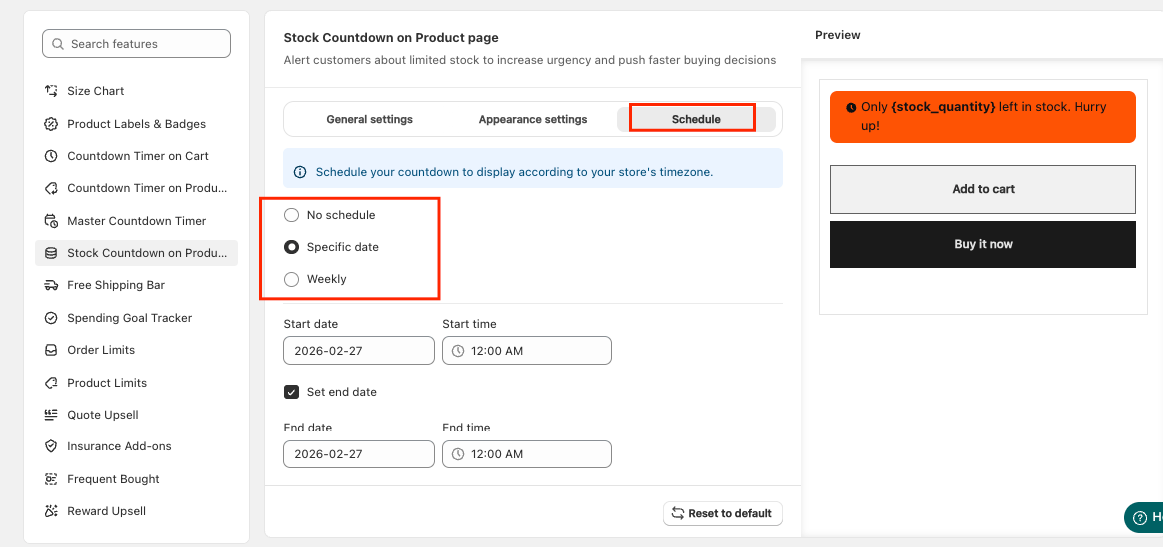
Step 5: Schedule the Stock Countdown
You can schedule when the stock countdown appears based on your store’s timezone: Specific date or Weekly
Select No schedule if you want the countdown to display at all times.
After completing the setup, visit your storefront to make sure the Stock Countdown displays correctly.
If you need further assistance, please feel free to contact us at [email protected].