How to Set Up Trust Badges on Product page
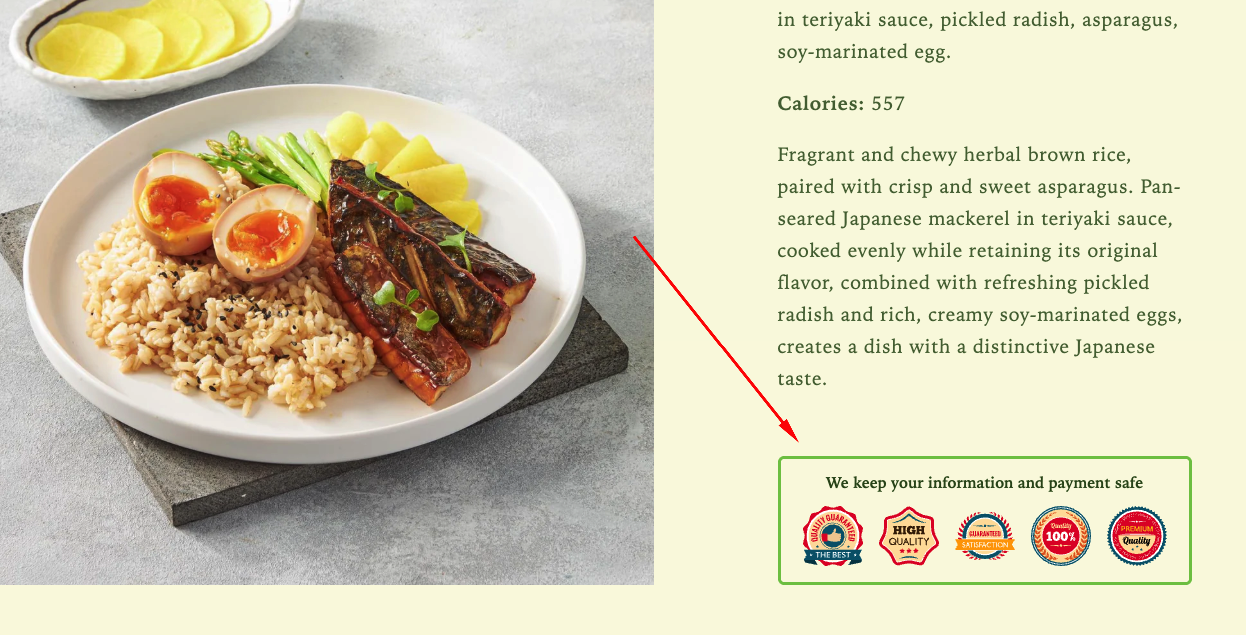
Trust Badges highlight key assurances—such as secure checkout, satisfaction guarantees, or premium quality—helping strengthen credibility and reassure customers before they make a purchase.
Step 1: Enable Lavar in Your Theme
Make sure the Lavar app embed is enabled in your Theme Editor first.
Step 2: Add Trust Badges Widget on Product page
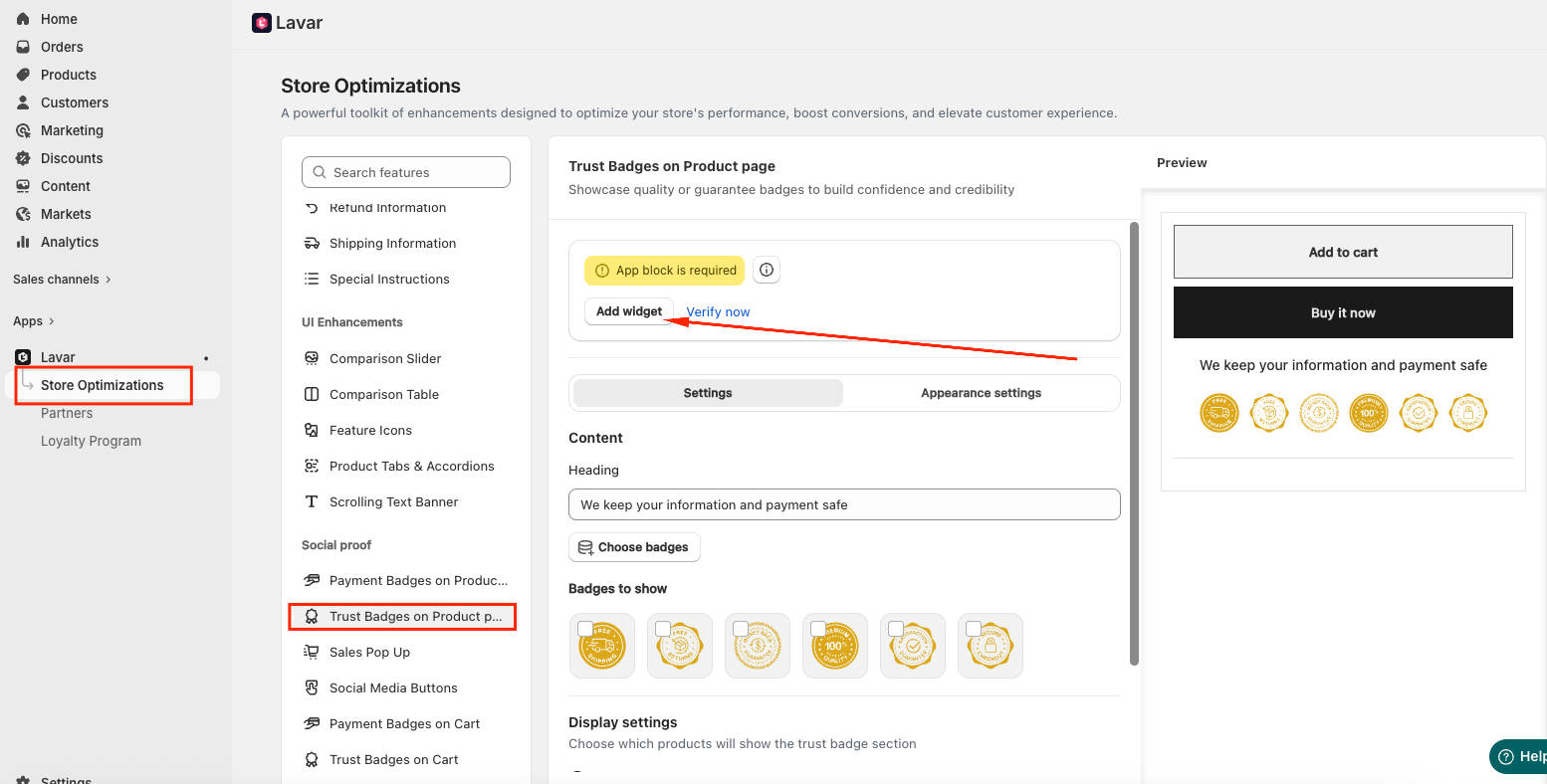
- Open Lavar in your Shopify Admin.
- Navigate to Store Optimizations → Trust Badges on Product page
- Click Add Widget.
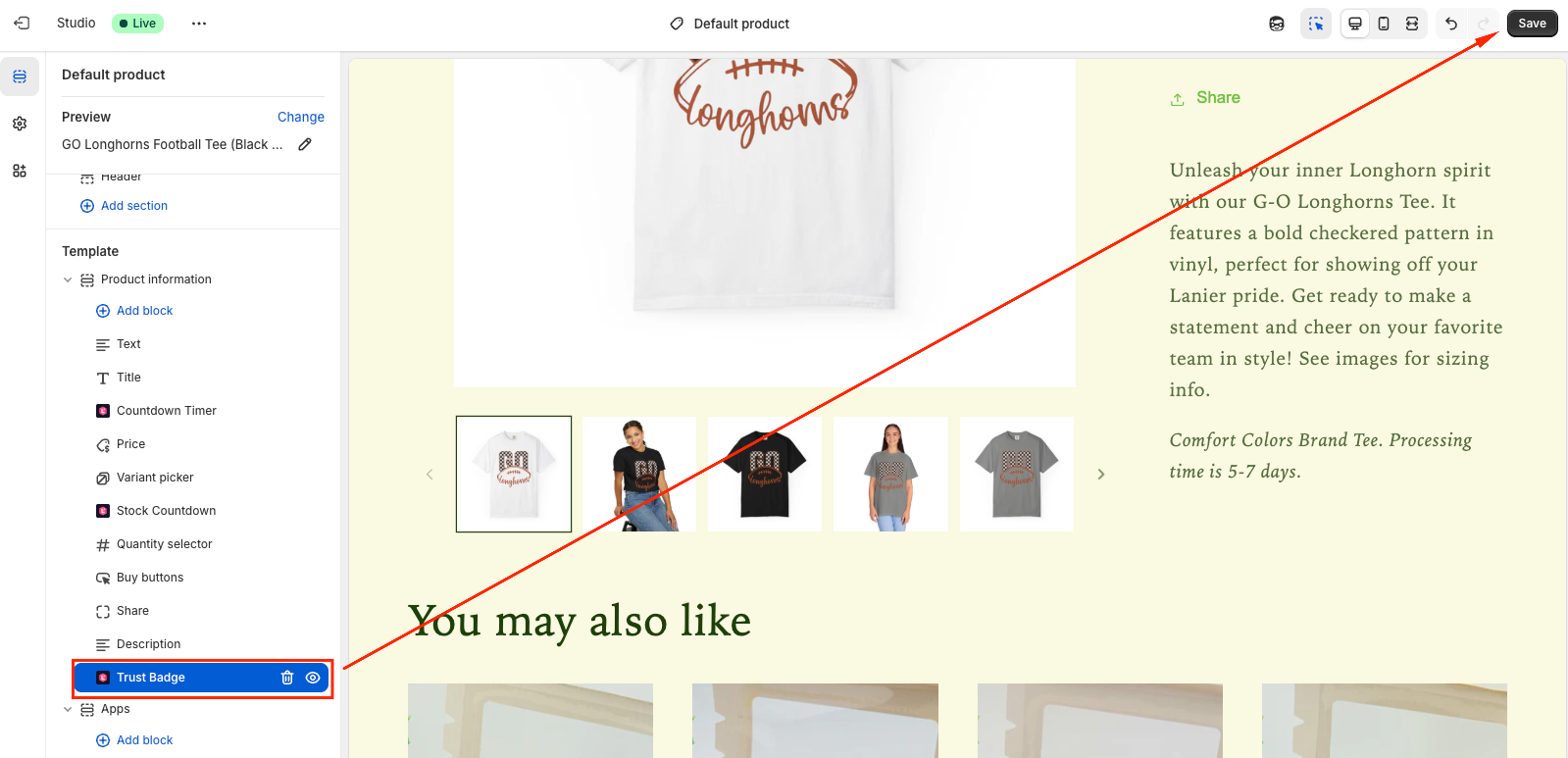
- You will be directed to the Theme Editor page. Then you can move the Trust Badges block to the position you want and click Save:
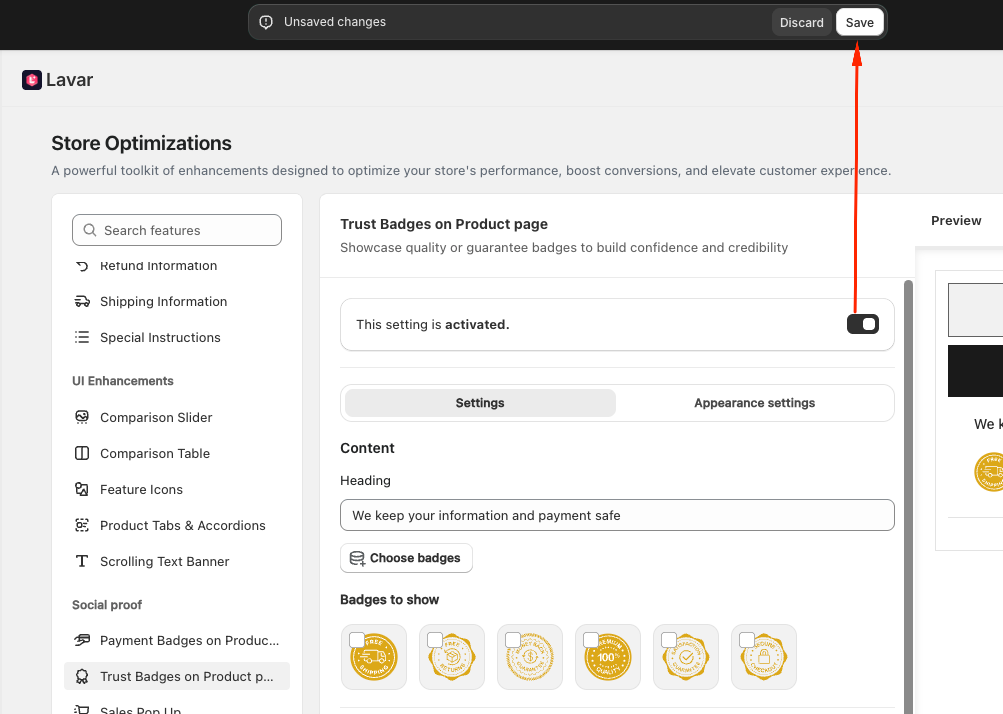
- After setup, return to the app and click Verify Now to confirm the app block was added correctly. Then you can Activate the feature to see it on the storefront.
Step 3: Configure the Trust Badges Settings
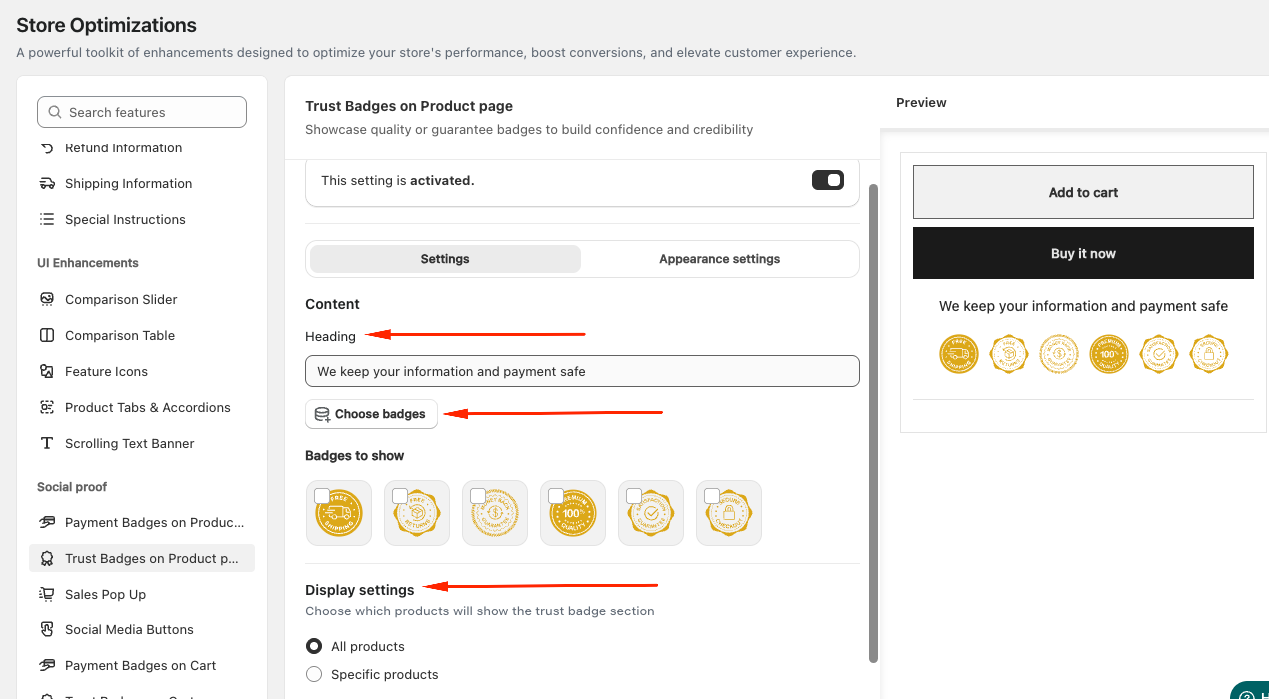
In the Settings section, you can:
- Enter a Heading for the Trust Badges section.
- Choose the badges you want to display and arrange their display order.
- Decide which products will show the Trust Badges section: All products or Specific products
Step 4: Customize the Trust Badges Appearance
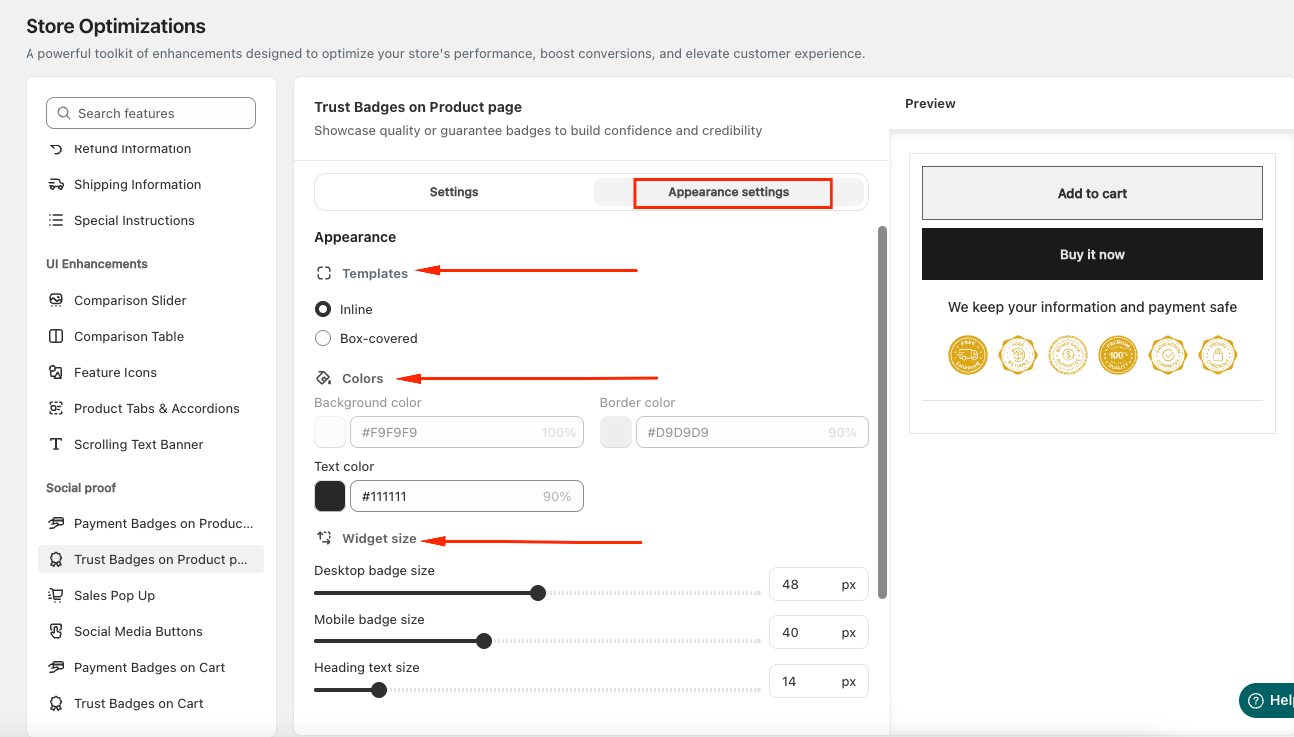
In the Appearance section, you can:
- Choose the template: Inline or Box-covered
- Adjust the heading and badge size for both desktop and mobile
- Apply custom colors to match your store design
If you need further assistance, please feel free to contact us at [email protected].